DubTab for Mac is here — and it hears more than your browser
On this page
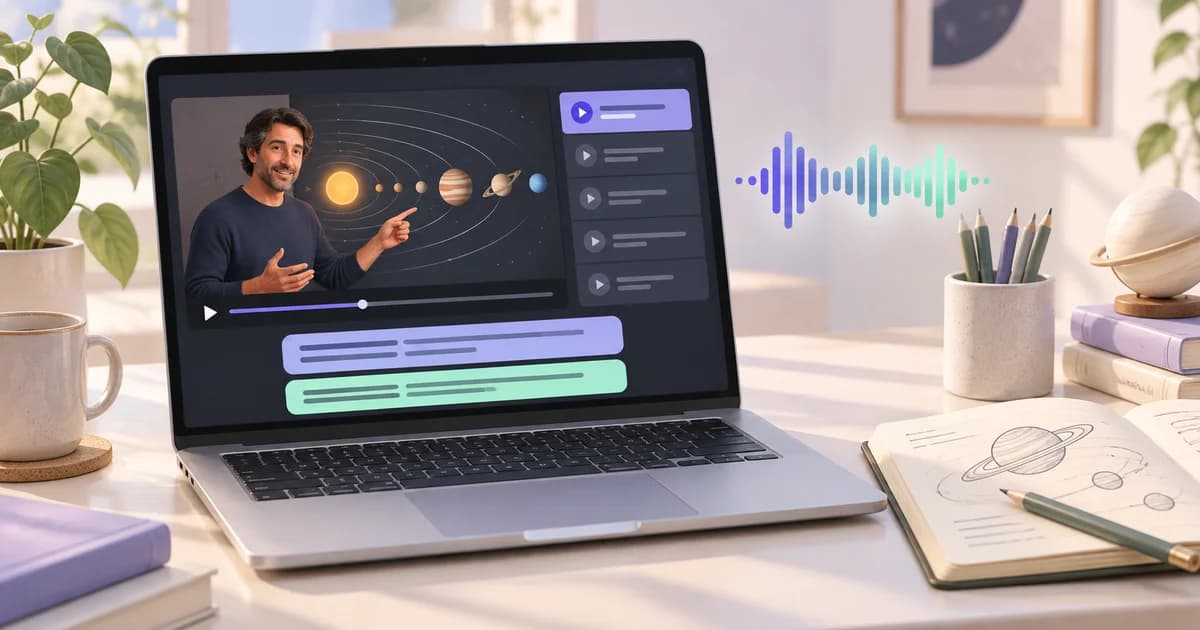
DubTab for Mac shipped this week. Apple Silicon and Intel, both signed and notarized — you can get it from the download page.
The short pitch is easy: it does everything the browser extension does, and then it keeps going. The longer answer is more interesting, because what the desktop app unlocks is not more features. It is a different set of moments where you can press the button at all.
The name is a fossil
DubTab. Dub a tab. That was the entire idea — I wanted to watch a stream in a language I did not speak, inside a browser, without leaving the page. The scope was right there in the name, and for a long time it was the right scope.
Then people started telling us what they were actually trying to watch, and a lot of it was not in a tab at all. The name stayed. The product did not.
The extension's limit was never a missing feature
The browser extension listens to a tab. That is not a cut-down design — it is exactly right for the thing most people do most of the time, which is watch something in a browser. It installs in seconds, the captions sit inside the page, and there is nothing to download.
But a tab is a boundary. If the sound is not passing through your browser, no extension can reach it, no matter how good it is. And a surprising share of the things people actually need translated live outside a tab.
What lives outside the tab
Meeting clients. Zoom and Teams both have web versions, and the extension handles those fine. But most people are in the desktop client — that is what the calendar invite opens, that is what IT installed. The audio in that window never touches your browser. Until now the only thing we could suggest was "join from the web client instead," which is a poor answer to give someone who is already two minutes late.
Files on your own disk. A lecture recording a colleague sent you. A
conference talk you downloaded to watch on a flight. An .mkv that no streaming
service will ever host. Open it in whatever player you like and DubTab hears it.
Apps that were never a website. Discord stages. Desktop streaming clients. Language-learning apps. Anything with a window and a sound.
And browser tabs, still. This is the part people miss: the desktop app hears your browser too. So it is not a decision you make per session — install it once and every case is covered. If you want the two compared properly, that is what the help article is for.
Why it can hear more
Here is the part that took the longest, and it is not the part anyone expects.
The obvious way to capture a computer's audio is to record everything going to the speakers. That approach breaks immediately for dubbing, for a reason that is obvious in hindsight and not at all obvious in advance: we are also playing audio. The translated voice comes out of the same speakers the original went into. Record the whole mix and you record your own dub, feed it back in, and translate your own translation.
You cannot reliably subtract your own output either. It sounds like it should be easy — you know exactly what you played — but the moment someone plugs in headphones or switches output devices, the assumption breaks and the loop comes back.
So the app does not listen to your speakers. It listens to one application at a time, and simply never listens to itself. That capability is newer than you would think on both platforms, which is where the system requirements come from: Windows 11, or macOS 14.2 and later. Not a preference — it is the first version where a normal app can do this without asking you to install a system extension and reboot.
That last part mattered more than the version cutoff. The old way to capture audio on a Mac was to ship a virtual sound device: install an extension, restart, approve a low-level prompt, then manually re-route your audio output before you can watch anything. For a product whose entire promise is press one button on the thing you are already watching, that is not a compromise — it is a different product.
What it asks for, and what it doesn't
macOS will ask you once to allow recording system audio. That is the only permission the app needs. It never asks for screen recording, and never for your microphone — the first-run guide walks through the setup steps.
When it appears took some thought too. The idle level meter — the little indicator showing audio is flowing — would be enough to trigger the request on its own, which would put a system dialog in front of you before you had pressed anything or had any reason to expect it. So nothing reaches the audio layer until you actually start a session. Same dialog, entirely different moment.
Which one should you install
If your Mac runs 14.2 or later, install the desktop app — it covers the tab cases too, so there is nothing left to decide. If you are on an older Mac, or on Windows 10, or on Linux or ChromeOS, the extension is the one, and it is not a consolation prize: same translation, same quality, same balance of hours. One account covers both.