How to turn off YouTube auto-dubbing and keep the original audio
On this page
Last checked: October 10, 2026, in the English YouTube interface. Menus change. If a label looks different, look for the closest match.
You open a video and the creator suddenly speaks your language in an AI voice. Or a language you never asked for. You're not alone. As one Reddit user put it: "Do the people who created this feature NOT KNOW THAT MULTILINGUAL PEOPLE EXIST?" (r/youtube)
Quick answer
- There is no "turn off auto-dubbing" switch for viewers. YouTube's Help Center doesn't offer one.
- The setting that lasts is Preferred languages. Add every language you understand. YouTube says content whose original audio is in one of your preferred languages won't be translated and defaults to the original audio. (YouTube Help: Watch videos in your preferred language)
- For one video, use the Audio track menu. Open the player's Settings → "Audio track" → pick the track labeled "original". This only applies to that video. (YouTube Help: Use automatic dubbing)
- On a desktop browser, an extension can pick the original track every time. It's the closest thing to an off switch. Details below.
Preferred languages only protects videos whose original language is on your list. A video originally in a language you didn't add can still be dubbed. Adding more languages reduces this, but YouTube doesn't promise it will stop every dub.
How to tell you're hearing a dub
Open the player's gear menu and look at the Audio track row. It names the track that's playing. If it doesn't say "original", you're hearing a dub. YouTube also says auto-dubbed videos are marked "auto-dubbed" in the description (source).
Desktop (youtube.com): the fix that lasts
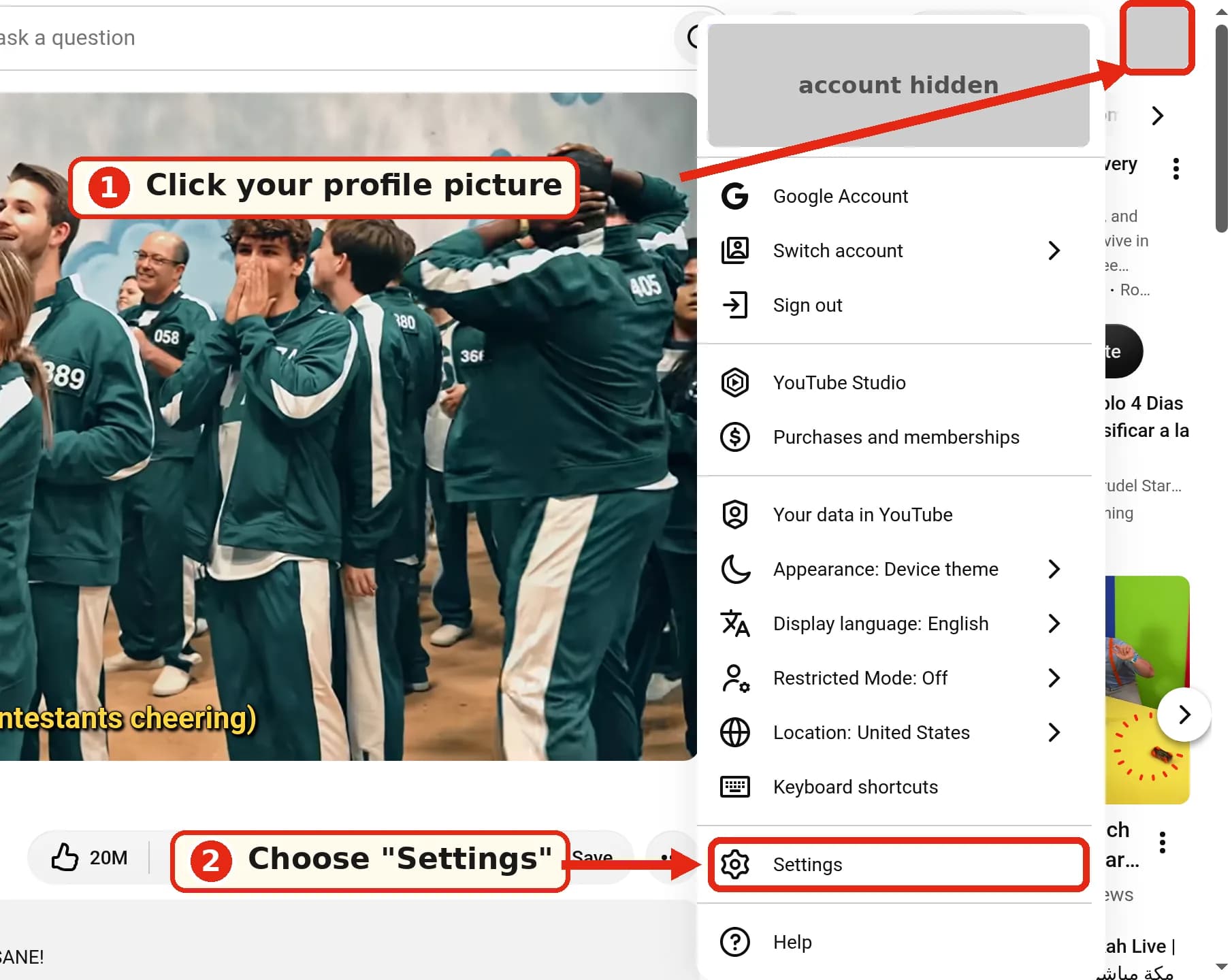
- Click your profile picture (top right) and choose "Settings".
- In the left sidebar, open "Playback and performance". (The Help Center writes it as "Playback & Performance".)
- Under Language, next to "Preferred languages", click "Add or edit languages".
- Add each language you understand and confirm.
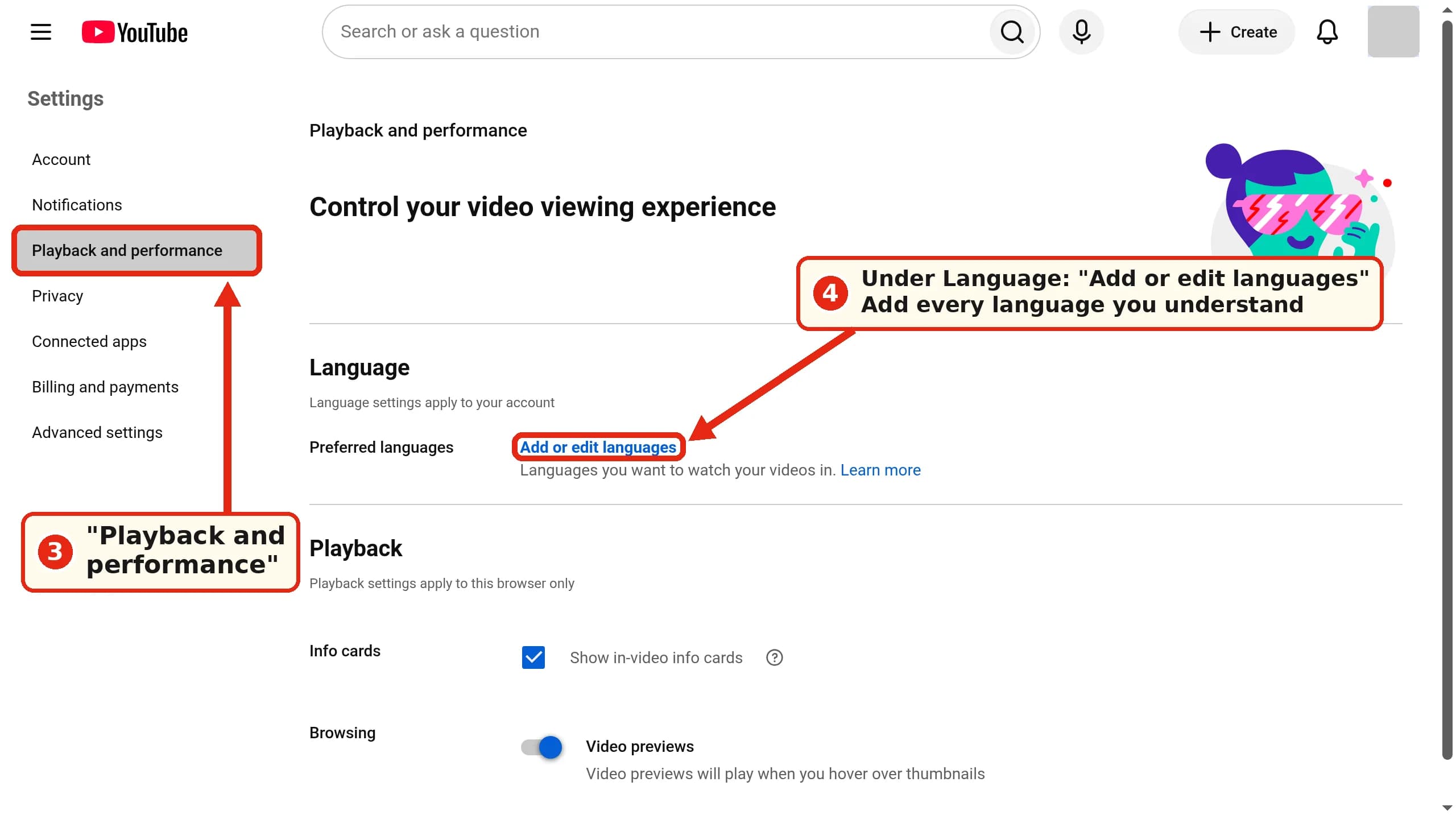
Preferred languages is the only account-level control. The page itself says "Language settings apply to your account," so the same list should follow you to the app.
Desktop: switch back to the original for one video
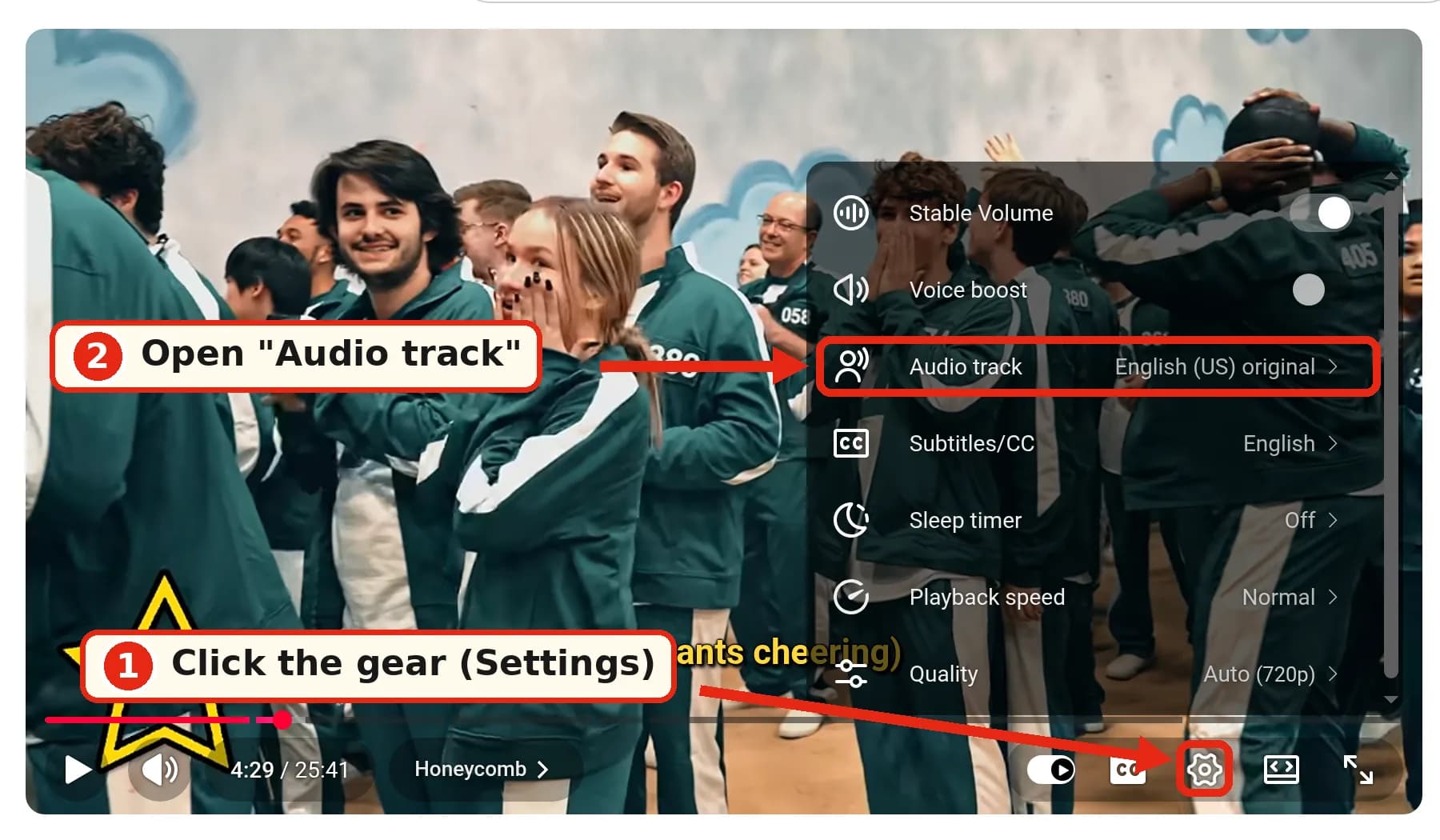
- Click the gear (Settings) in the player.
- Open "Audio track". The track that's playing appears next to it, for example "English (US) original".
- Pick the track with "original" in its name.
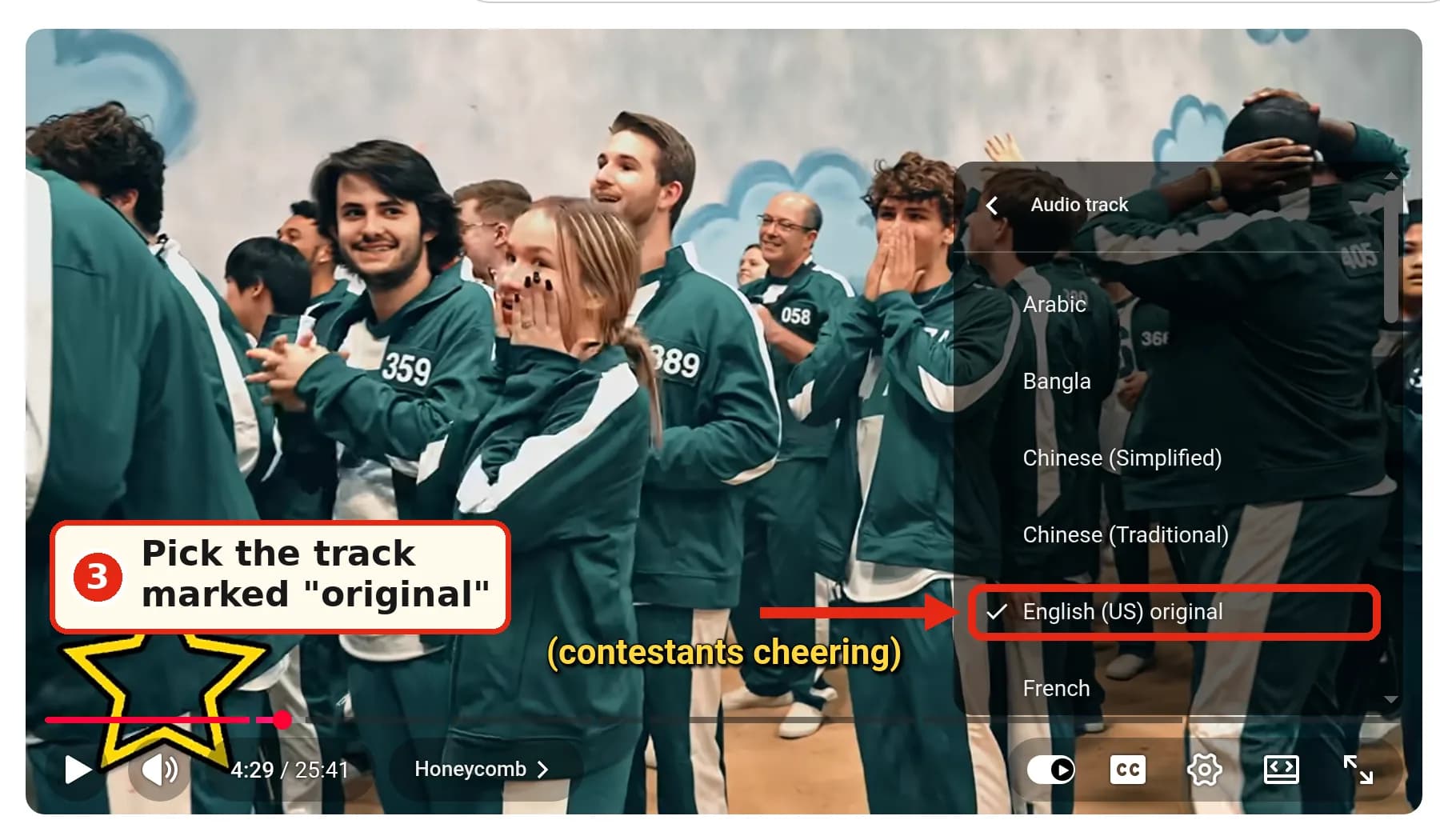
This only changes the current video. On our test page, this menu also linked to "Edit your preferred languages in settings".
Desktop: make the original track the default with an extension
If you watch a lot of videos in languages you don't want on your list, switching tracks by hand gets old. Two free, open-source browser extensions switch every video to the original audio for you:
- YouTube Anti Translate: Chrome, Edge and Firefox. Its "Untranslate audio track" option turns off dubbed audio. It also undoes translated titles and descriptions.
- YouTube No Translation: Chrome, Edge and Firefox. It can always use the original audio track, or a specific one you choose.
They aren't made by YouTube, and we didn't test them for this article. Like any extension that changes YouTube, they need permission to read youtube.com pages, and a YouTube update can break them until the developer catches up. They only work in a desktop browser, not in the app.
Android and iPhone app
YouTube's Help Center gives the same path on Android and iOS (Android, iOS). We took these steps from Help and didn't screenshot the apps.
The fix that lasts: tap your profile picture → Settings → Languages → Preferred languages → choose your languages → Confirm.
One video: tap the video, then the player Settings → Audio track → choose the original.
YouTube notes that preferred languages are separate from your app language and location settings. Changing the app's language won't stop dubs.
Shorts
On desktop, open the Short's ⋮ ("More actions") menu. It has an "Audio Track" item. Ours showed "English original":
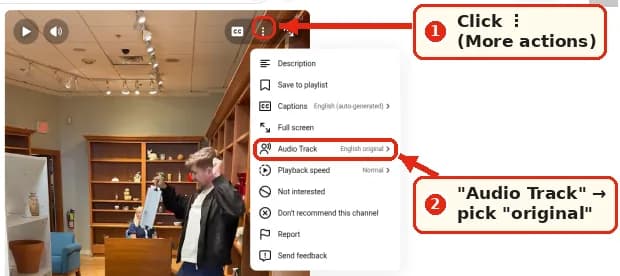
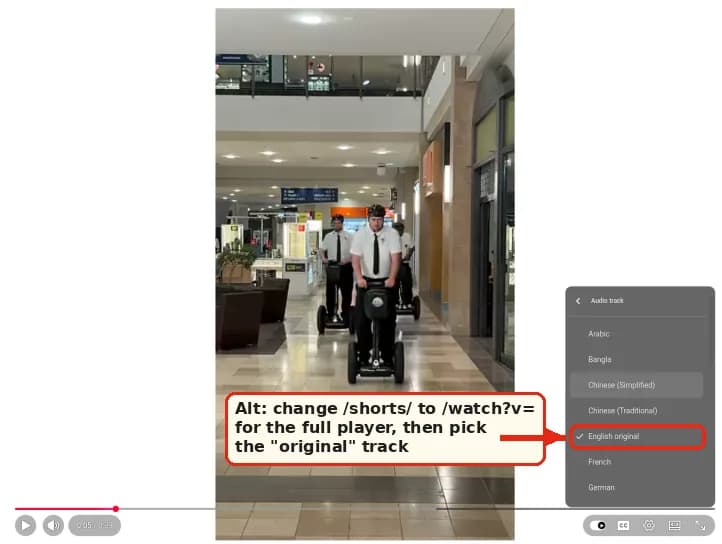
If the menu doesn't show it, a widely shared workaround is to change /shorts/ in the URL to /watch?v= and keep the video ID. The Short opens in the regular player, where the Audio track menu works:
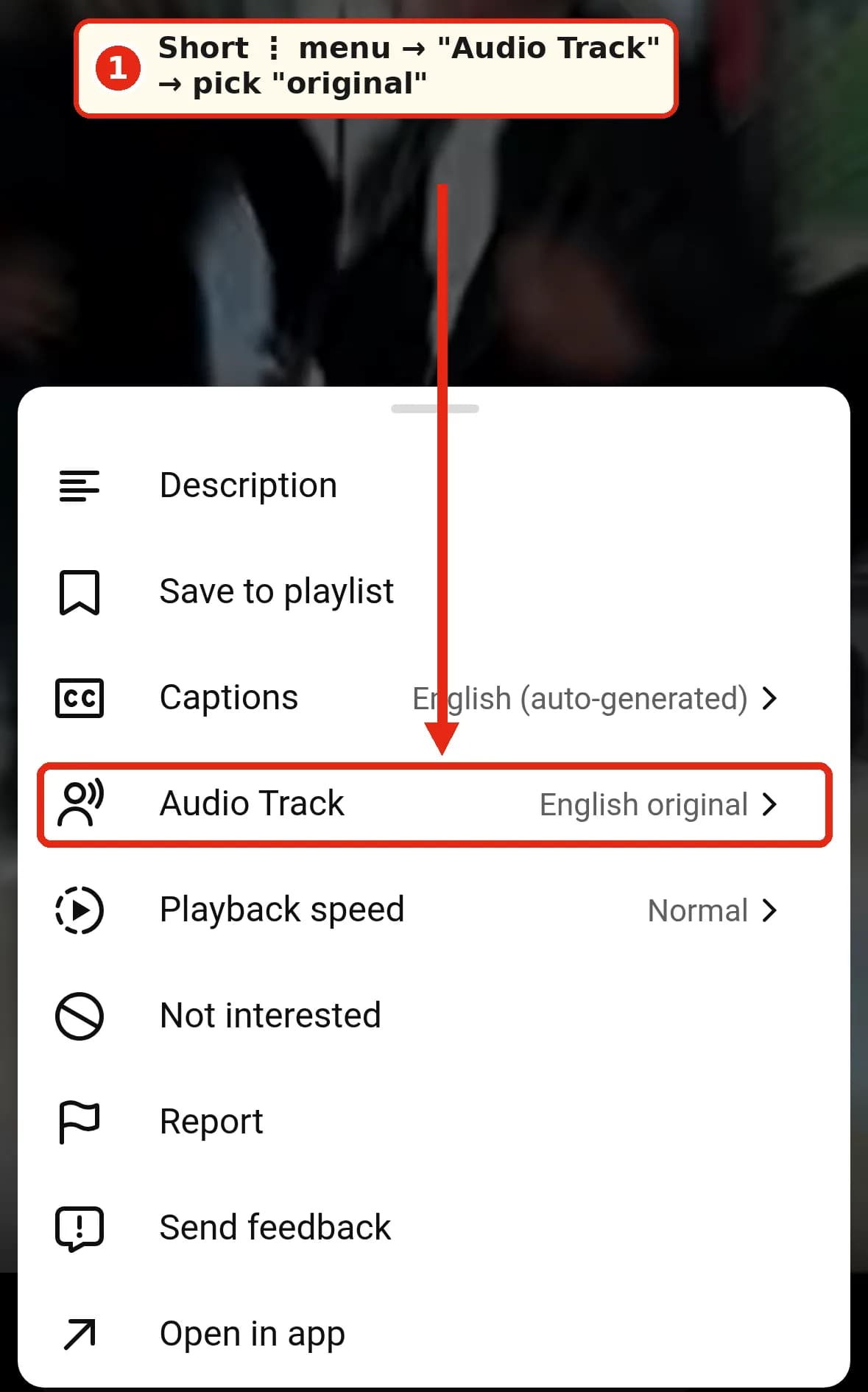
On mobile web (m.youtube.com), the Short's ⋮ menu also had "Audio Track" in our test:
In the app, HT Tech describes the same ⋮ → Audio track → Original route, and says the dub may come back after restarting the app. Some users on Reddit say the option is missing on some Shorts entirely, especially on Android (r/youtube). YouTube's Help Center doesn't cover Shorts separately, so Preferred languages is the most reliable fix there too.
Mobile web (m.youtube.com)
One video works. In the player, tap the gear → "Audio Track" → pick the original.
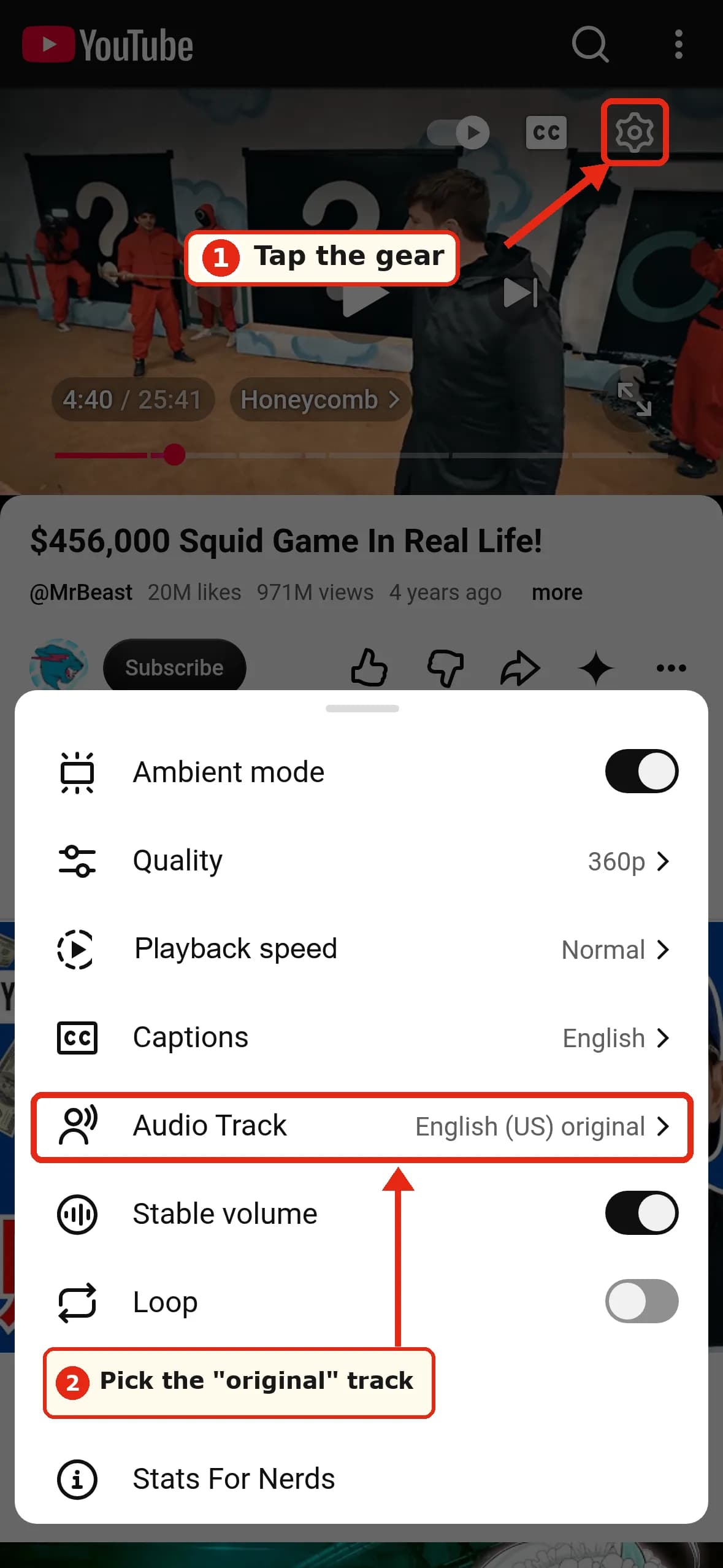
Preferred languages isn't available here. Mobile web Settings → General only has "Language", which is the interface language, not your audio preference. A Reddit user noticed the same: "On mobile web, the option isn't there." (r/languagelearning)
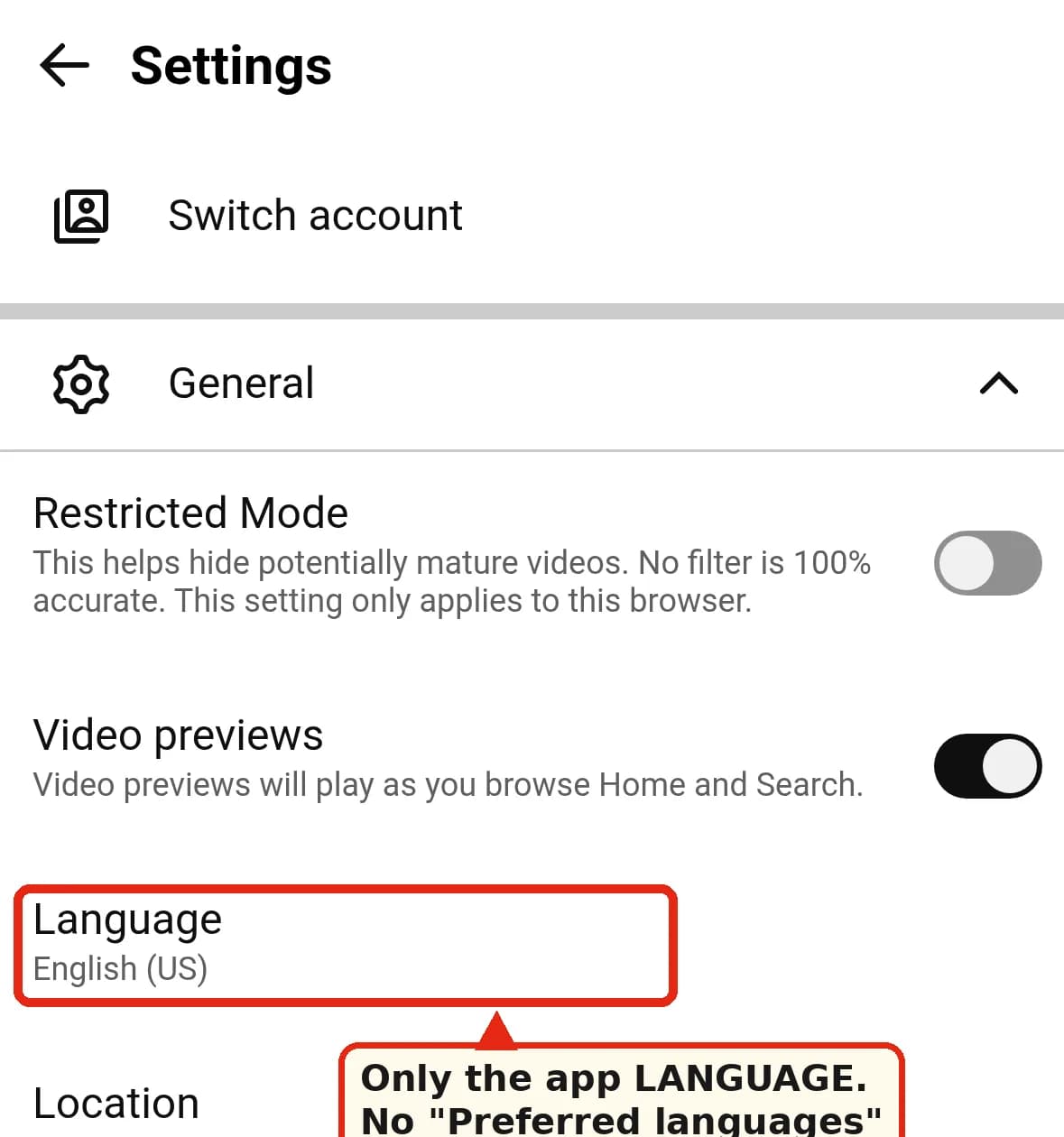
Set Preferred languages in the app or on desktop instead. The setting belongs to your account, but we haven't confirmed how quickly it reaches mobile web.
Downloads (YouTube Premium offline)
YouTube's Help Center doesn't say which audio track a download uses, and there's no "download original audio" setting (Offline FAQ, Premium downloads). Premium users in the Help Community report downloads saved with the AI-dubbed track. We couldn't confirm whether you can switch tracks on a video after it's downloaded.
Tip (not official): set Preferred languages first, play the video online to confirm you hear the original, then download it.
TV
We haven't checked the TV app, and Help doesn't document auto-dubbing controls for TV. If you see an audio or audio-track option in the player settings while watching, try that. Setting Preferred languages on your account from desktop or the app is the safer bet.
For creators: stop auto-dubbing on your channel
Per YouTube's automatic dubbing Help page:
- YouTube Studio app: profile picture → Settings → under Content, tap Automatic dubbing to turn it on or off. Publish manually lets you review dubs before they go live.
- Studio on desktop: Help names the checkbox "Allow automatic dubbing" under Settings → Channel → Advanced settings. HT Tech describes it under Settings → Upload defaults → Advanced settings. Check both. We couldn't screenshot this without a creator account.
- One video (desktop Studio): Content → select the video → Languages → click the language, then the icon in the Audio column → Publish, Unpublish, or Delete. Deleted dubs can't be republished.
- Wrong source language detected? Change the video's original language to the correct one, and YouTube regenerates the dubs. You can't edit automatic dubs. This is the fix for cases like the trailer Jagex said was detected as German (Jagex via Reddit).
Why it happens, and what isn't dubbed
When a video has auto-dubbed tracks and its original language isn't among your preferred languages, YouTube may play a dub instead of the original.
Plenty of videos never get one. According to Help, dubs aren't generated for videos longer than 120 minutes, videos with no speech or only music, original audio in an unsupported language, videos where the source language can't be identified, very fast speech, and videos with copyrighted content.
The language coverage is narrower than it feels. In the same Help page, English originals can be dubbed into about 20 languages. Most other original languages get one to three targets, usually English. A Korean video, for example, can be dubbed into English or Indonesian.
When you do want a video in your language
Turning off YouTube's dub and wanting a translation aren't opposites. The dubs YouTube offers may not include a language you speak: a Korean video, as noted above, only gets English or Indonesian. Or the video you need is a three-hour lecture, a live stream, or on a site that isn't YouTube.
DubTab works from your side of the screen. It's a Chrome extension, plus a desktop app for Windows and Mac, that listens to the video you're playing and translates it into your language in real time: a translated voice, translated captions, or both. It supports 60+ languages, it doesn't need the video to have captions or a dub track, and it does nothing until you start it.
It fits with the fixes above:
- Put YouTube on the original track first. DubTab translates what it hears. On the original track that's the creator's own words. On a dubbed track it would be translating a translation.
- Prefer reading? Turn the voice off and keep translated captions over the creator's real voice. Bilingual captions show the original line and the translation together, which language learners like.
- Live streams work too. YouTube's live auto-dubbing is still a pilot that starts in 2027, as we covered here. DubTab handles YouTube live streams today.
The honest limit: the translated voice runs a few seconds behind the speaker, because it has to hear a phrase before it can say it. Here's where that delay comes from.
FAQ
How do I turn off auto-dubbing completely? As a viewer, you can't. Add every language you understand under Preferred languages, then fix any stragglers with the Audio track menu. On desktop, an extension can do the switching for you.
Why does YouTube keep auto-dubbing when I clearly speak English? Preferred languages is based on the video's original language, not the dubbed one. If a Spanish video gets dubbed into English for you, add Spanish too if you understand it.
Can I keep the original voice and just add captions? Yes, if the video has captions. Pick the "original" audio track, then Subtitles/CC → Auto-translate → your language, from the same player menu. If there's no CC option at all, YouTube has nothing to translate from. That's one of the cases DubTab covers.
Why is there no Audio track option on this Short?
Try the /watch?v= URL trick on desktop, or set Preferred languages so the original plays by default.
I set it, but it switched back. The Audio track choice is per video. Only Preferred languages lasts.