Quick start with the desktop app
The desktop app hears anything your computer plays, so there is one extra decision up front: which sound it should listen to.
Install and sign in
- 1Download and install
Get your installer from the DubTab download page — the Windows installer, or the Mac DMG for Apple Silicon or Intel. On Windows, run it; SmartScreen may show a prompt the first time, naming the publisher XTCodeTech Ltd. On Mac, open the DMG and drag DubTab to Applications.
- 2Sign in
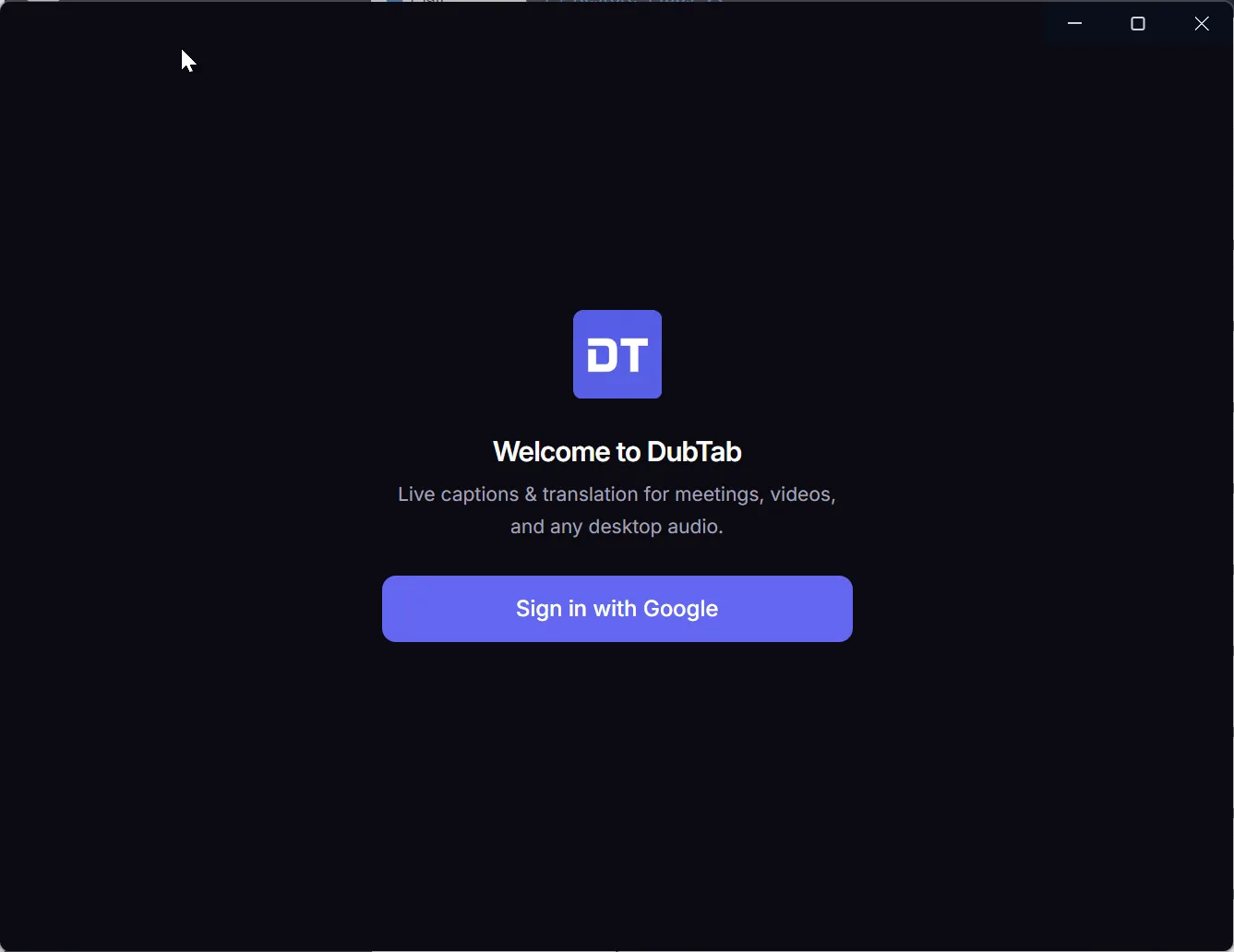
DubTab opens your browser to sign you in, then hands you back to the app. If the browser will not open, copy the sign-in link and paste it into any browser on the same computer.
Choose what DubTab listens to
This is the one step the extension does not have, and the one that decides whether a session sounds clean.
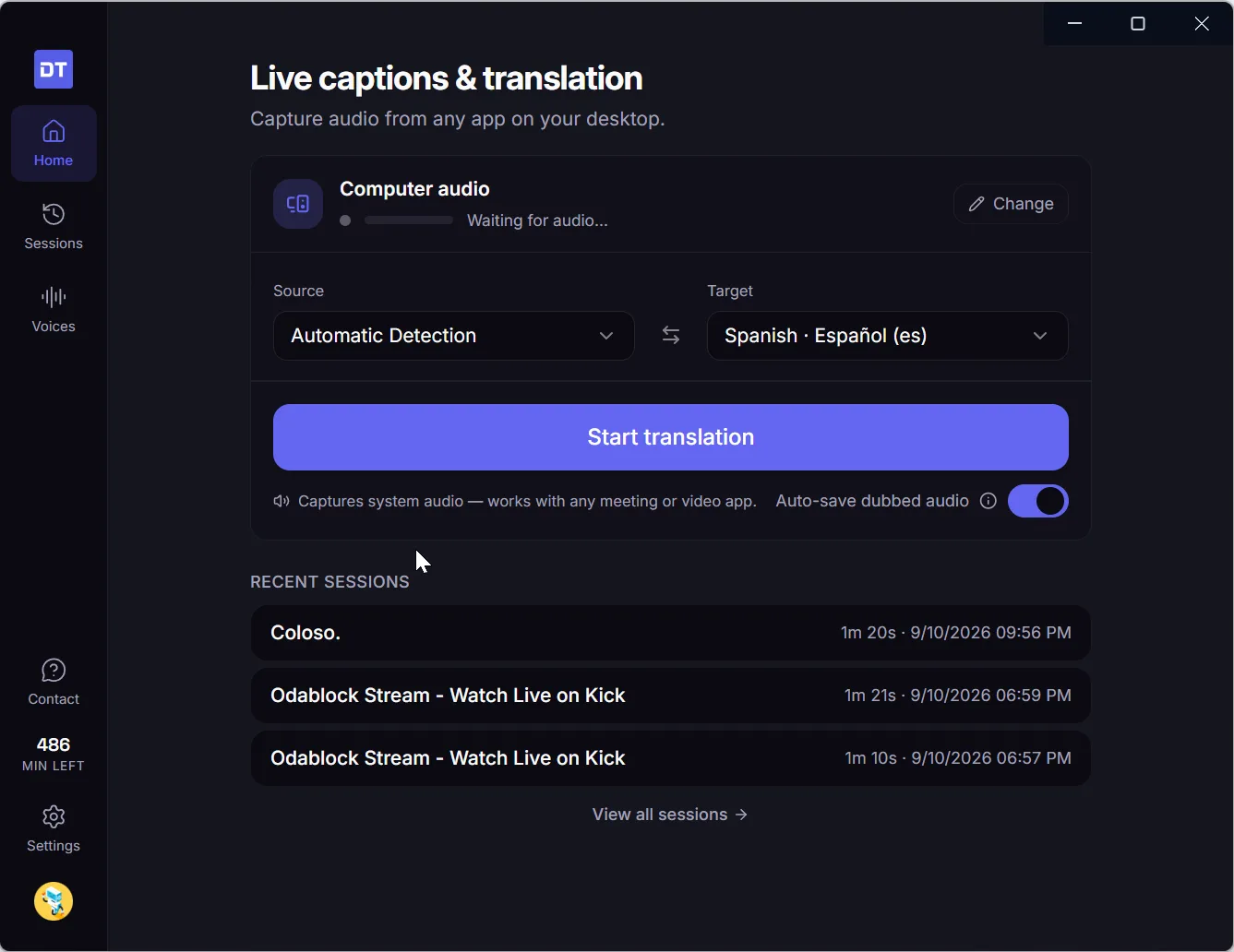
The first time you open DubTab, Home shows two cards: Anything playing on your computer, dubbed as it plays, and A video file on this computer, prepared a little ahead so it stays in sync — see Dub and subtitle a video file. After that, the source sits at the top of Home, and Change switches between these:
- Computer audio picks up anything that makes a sound, including notifications and whatever else is playing.
- One specific app ignores everything else. Pick this for a meeting — it is the difference between translating the speaker and translating the speaker plus your music. Until you have chosen the app, the start button reads Choose an app… and opens the list.
DubTab remembers the choice for next time.
Start and stop a session
- 1Pick the two languages
Auto Detect works out the source language on its own, and it is the right choice when a session has several languages in it, or when you are not sure what you will hear. If you know the whole session is in one language, naming that language yourself gives noticeably better recognition — auto detection otherwise spends part of its accuracy on a question you have already answered.
- 2Press Start translation
Captions fill the window and the HUD floats over everything else, so you can go straight back to whatever you were watching.
- 3Send the window away
Closing the window does not quit DubTab. Pause, resume, stop, show or hide captions and mute the dubbing all live in the tray menu while translation keeps going. Paused time is never charged.
Common questions
Which systems does it run on?
Windows 11, and macOS 14.2 or later with separate builds for Apple Silicon and Intel. It does not run on Windows 10, and there is no workaround — Windows 10 lacks the audio feature the app is built on. Where it cannot run, use the browser extension instead: it covers anything that plays in a Chrome, Edge or Brave tab.
On Mac, why does it ask to record system audio?
Because that is how it hears what your computer plays. macOS asks once, the first time you start a session — allow it under System Settings › Privacy & Security. It is the only permission DubTab asks for: it never requests screen recording, and it has no microphone access at all.
Does closing the window stop the translation?
No. DubTab keeps running in the system tray, and the tray menu can pause, resume, stop, show or hide captions and mute the dubbing. Stop is the only thing that ends the session.
Should I use Auto Detect or name the source language?
Use Auto Detect when a session has several languages in it, or when you do not know what you will hear. If you are sure the whole session is in one language, naming it gives noticeably better recognition, because auto detection no longer has to spend accuracy deciding what it is listening to.
Do I need a separate subscription for the desktop app?
No. One account and one balance of hours cover the browser extension and the desktop app, on Windows and on Mac alike. Signing in on either gives you the same plan.