Manage dubbing delay
The translated voice runs a few seconds behind the speaker, and the gap grows over a long session. Here is why, and what you can do about it.
Why it happens
A sentence has to be heard in full before it can be translated, and a translated sentence is usually longer than the original. Speaking it takes real time. On a fast talker the voice finishes one sentence as the speaker is halfway through the next, and over a long stretch it drifts.
This is a property of live dubbing, not a fault in your setup. Captions are not affected — they stay close to the speaker either way.
The two modes
| Keep in sync (default) | Read every line | |
|---|---|---|
| Speaking pace | Slightly faster while it is catching up | Always natural pace, never speeds up |
| Timing against the video | Stays close to the picture | Drifts further behind as the session goes on |
| Lines spoken | Every one | Every one |
| Best for | Lectures, courses and meetings | When you want the voice to sound completely unhurried |
Where the setting is
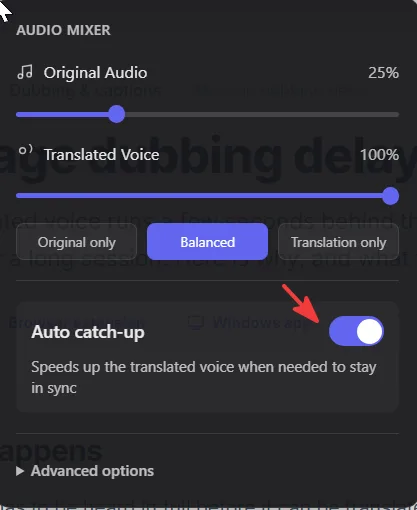
- 1Open the Audio Mixer in the dock
While a session is live.
- 2Find Auto catch-up
On is Keep in sync. Off is Read every line.
- 1Open Settings
From the DubTab window, or the tray icon.
- 2Go to Translated voice (dubbing), then When dubbing falls behind
Choose Keep in sync or Read every line.
Common questions
Does DubTab speed up the video as well?
No. It only speeds up the voice it generates. The video, and the original audio underneath, play at their normal speed.
Will Keep in sync skip anything?
No. Both modes speak every translated line in full. Keep in sync closes the gap by speaking slightly faster, never by dropping sentences.
Are the captions delayed too?
Much less. Captions appear as soon as a sentence is translated, while the voice also has to be spoken out loud. If you need to follow along as closely as possible, read the captions and treat the voice as support.