Choose a voice and adjust audio
Pick the voice DubTab speaks with, and decide how much of the original you still want to hear underneath it.
Pick a voice
The voice is chosen per target language, not once for the whole account. Translating into Spanish today and Japanese tomorrow means two separate choices, and each is remembered.
You can preview a voice before committing to it. Do that before a long session rather than during one — changing the voice mid-session is not what the preview is for.
- 1Open the dock
It sits at the edge of the page while a session is live.
- 2Open the voice picker
Choose a voice for the language you are translating into, and preview it.
- 1Open Settings
From the DubTab window, or the tray icon.
- 2Go to Translated voice (dubbing)
Choose a voice for the language you are translating into, and preview it.
Balance it against the original
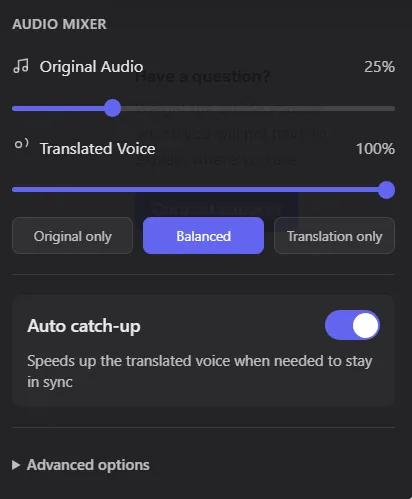
The Audio Mixer has two faders, and that is all most people ever need:
- Original Audio — how loud the source stays underneath.
- Translated Voice — how loud DubTab speaks.
Common questions
Can I still hear the original speaker?
Yes. The original audio and the translated voice have separate faders, so you choose the balance. If you also switch on Audio Ducking, the original dips only while the translated voice is speaking and comes back in the gaps.
Can I use a different voice for each language?
Yes — the voice is stored per target language. A voice chosen for Spanish does not affect what you hear when you translate into Japanese.
Can DubTab lower the original automatically while the translated voice speaks?
Yes — that is Audio Ducking, in the Audio Mixer. It is off by default, so switch it on if the two voices are competing. Once it is on, the original dips only while the translated voice is speaking and comes back in the gaps. With it off, the original stays exactly where you put its fader.