Dub and subtitle a video file from your computer
The desktop app can open a video or audio file on your computer and play it with translated subtitles and an AI voice. It prepares the dubbing a little ahead of where you are, so the voice keeps pace with the picture — and anything already prepared plays again for free.

Before you start
- The desktop app, version 1.0.7 or later, on Windows 11 or macOS 14.2 or later. Quick start with the desktop app covers installing it.
- A file it can play: MP4, MOV, MKV or WebM with AAC, MP3, Opus or FLAC sound, or an audio file such as MP3. If a file won't open has the way around everything else.
- An internet connection while it prepares. DubTab sends the sound of the part it is preparing to be transcribed and translated. The file itself stays on your computer — it is never copied or uploaded, and the picture is never sent.
Open a video file
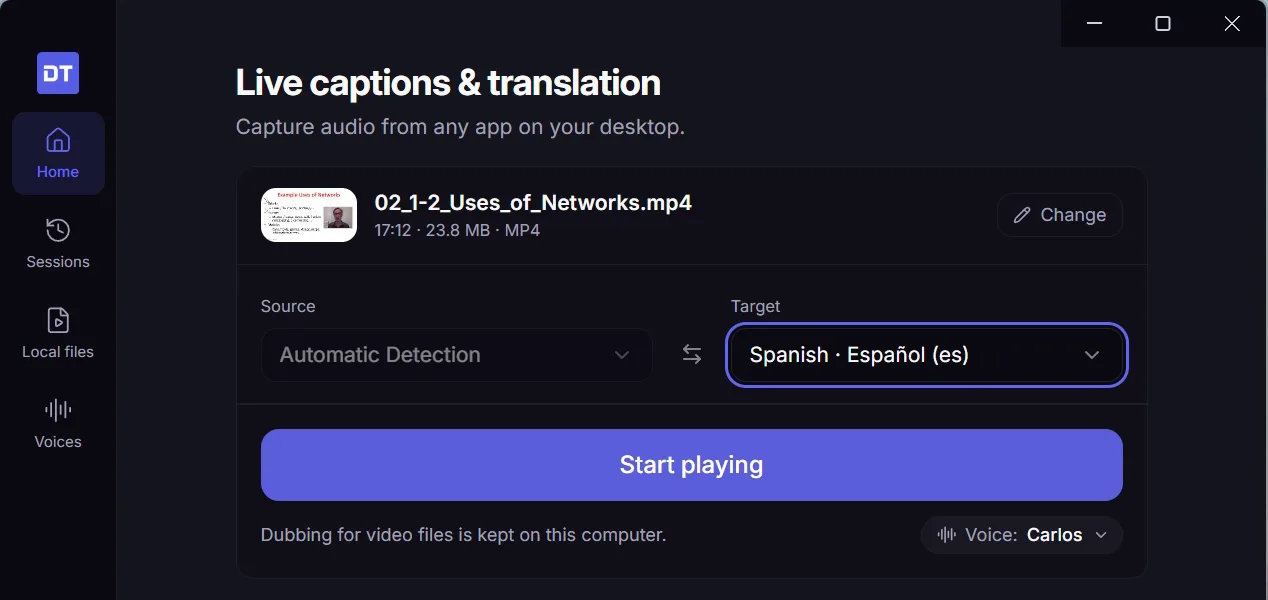
- 1Drop it in
Drag a video or audio file onto the DubTab window — anywhere works. You can also choose Video file as the source on Home and press Choose a file…, or use Open file… on the Local files page.
- 2Pick the language to hear
Choose the target language. The source is always Automatic Detection for video files: DubTab works out the spoken language line by line, so a lecture that switches language part-way still gets dubbed. Check the Voice beside it too — you can switch later, but the video pauses for a moment while the new voice catches up.
- 3Press Start playing
The first lines take a few seconds to prepare. If you'd rather not wait, press Play now with the original sound — the dubbing joins in as soon as it is ready.
Watch with dubbing and subtitles
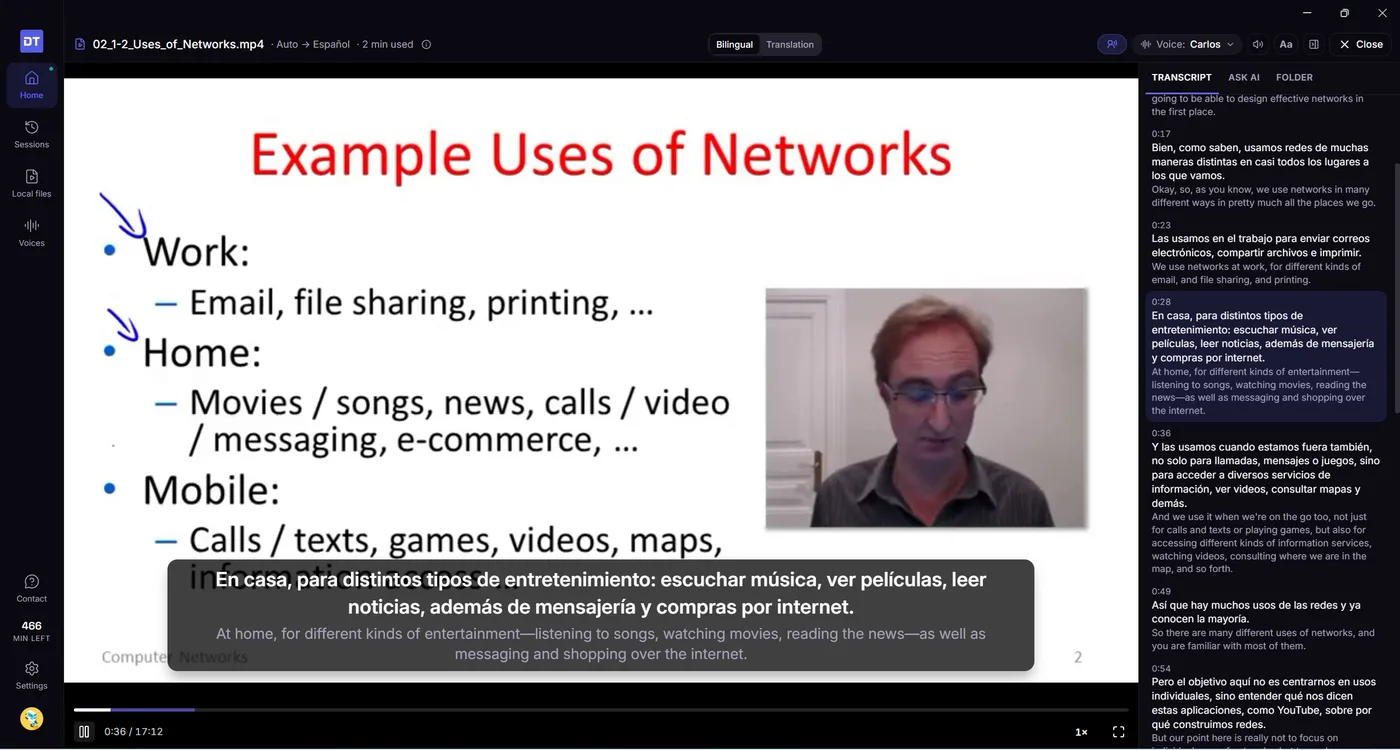
The dubbing is prepared a little ahead of where you are watching, so the voice keeps pace with the picture instead of trailing a few seconds behind it, as live dubbing does. Jumping ahead is fine: DubTab prepares from wherever you land.
- Bilingual and Translation at the top switch between both lines and the translation alone.
- Drag the subtitles anywhere on the picture, and double-click them to put them back. A long sentence shows in two short parts instead of one tall block over the picture.
- Audio Mixer balances the Original Audio against the Translated Voice — Choose a voice and adjust audio explains the two sliders.
- Voice switches the dubbing voice at any time. The video pauses for a moment while the line you are in catches up in the new voice, then plays on.
Follow along in the transcript
The Transcript tab beside the player fills in as the video is prepared, original and translation together, and follows the line being spoken. Click any line to jump the video there.
Each video keeps a single session in Sessions, however many times you watch it, so its whole transcript stays in one place — ready to search, export or summarise. From there, Play from here reopens the file at any line.
Ask AI about the video
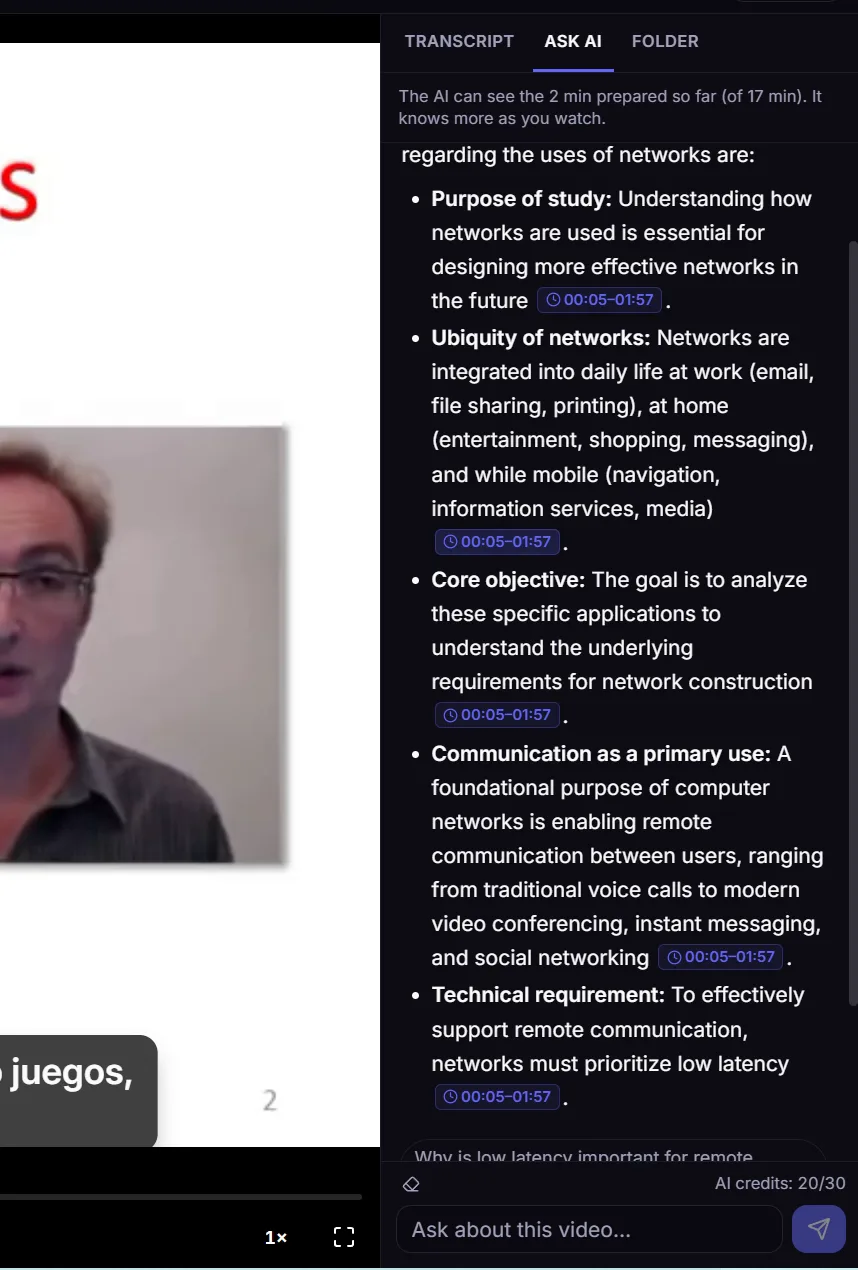
Ask AI sits next to the transcript. Ask anything about what you have watched: each point in the answer links to the moment it comes from, and clicking one jumps the video there. You can also start a question from any line in the transcript.
Work through a course
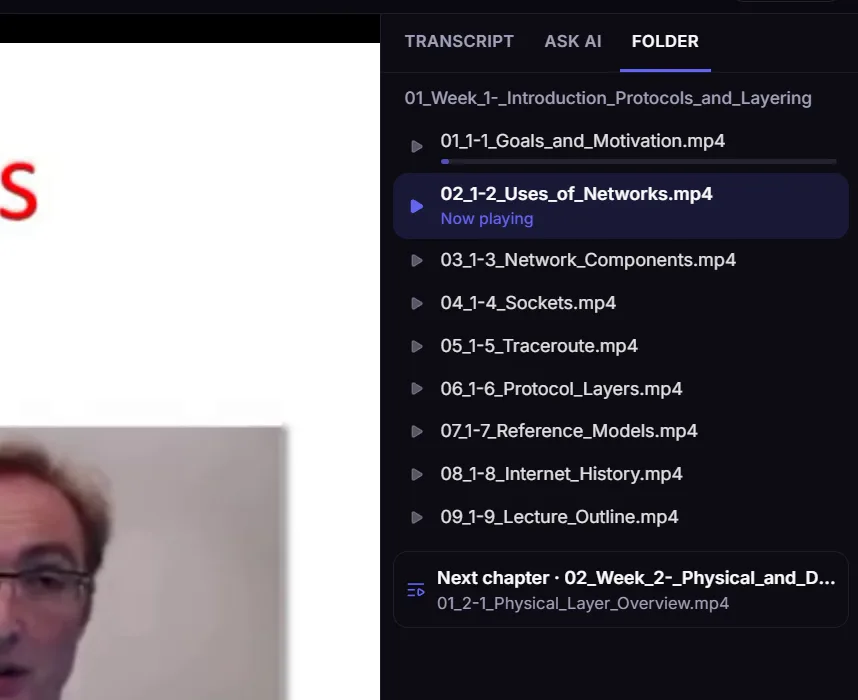
Drop a whole course folder instead of a single file, and DubTab opens the lecture you were on — or the next one you haven't seen.
- The Folder tab lists every lecture in the folder in order, with the one playing highlighted. Click any of them to switch.
- When a lecture ends, DubTab offers the next file in the folder. After the last one, it offers the first lecture of the next chapter — when the chapters are numbered folders, such as 03 and 04.
Change the speed
Playback speed, at the bottom right of the player, offers 0.75×, 1.25× and 1.5×. The dubbing speeds up or slows down with the video and keeps its normal pitch. The < and > keys step through the speeds.
Find your files again
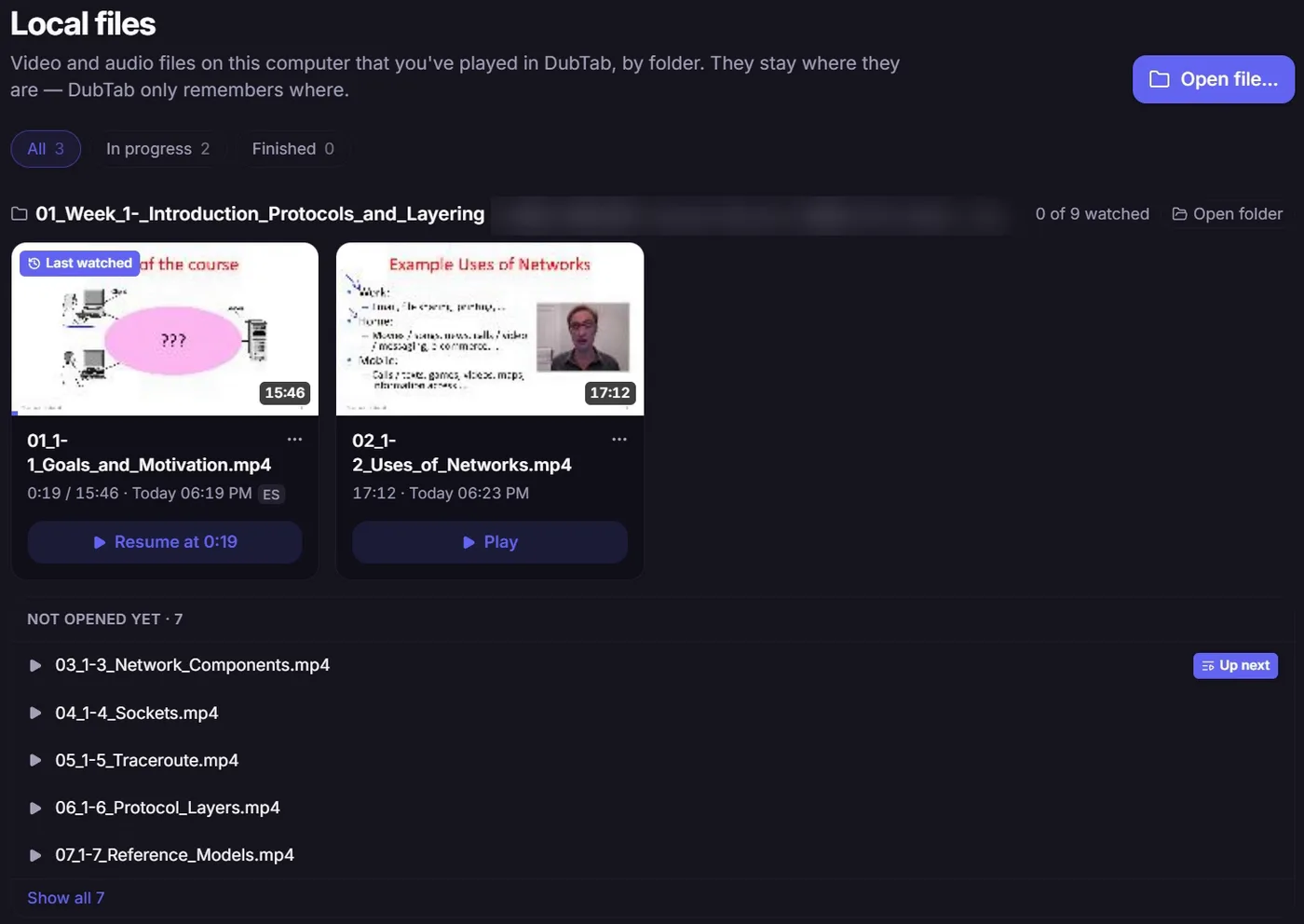
Every file you have played is on the Local files page, grouped by folder, with how far you got. Resume from its card, or from Continue watching on Home.
- A course folder shows how many lectures you have watched and lists the ones not opened yet, with the next one marked Up next.
- Moved a file, or unplugged the drive it is on? Its card says so. Use Locate… to point DubTab at it again — your progress and its session stay attached.
- Remove from this list hides a file from this page and from Continue watching. Nothing is deleted: open the file again and it comes back with your progress.
How minutes are counted
- You are charged for the part of the video that gets prepared — never more than about 2½ minutes ahead of where you are, and nothing while it is paused.
- You pay for each part once. Watching a prepared part again on the same computer, in the same language, uses no minutes — even with a different voice. Watching in another language prepares it again.
- If a video turns out to be in your language already, DubTab stops preparing so you aren't charged for it, and offers Keep preparing in case it switches language later on.
- Prepared subtitles and dubbing are kept on your computer, up to 2 GB. Past that, the oldest videos are cleared first, and watching one of those again is charged again. See and clear them in Settings → Prepared videos.
- When you close a video, DubTab shows the minutes it used and how many you have left.
Understand translation hours and AI credits explains your balance.
Why the dub stays in sync
Live dubbing has to hear a sentence before it can translate and speak it, so the voice always runs a little behind — Manage dubbing delay explains why. A file is different: DubTab can read ahead, so each line is translated, voiced and fitted to the original timing before you reach it.
So for a video you already have on your computer, open it here rather than playing it in another player with Computer audio capture.
If a file won't open
DubTab tells you when it can't play a file, and why — usually the format, or a sound track it can't play, such as Dolby Digital or DTS on a film.
- 1Play it in your own video player
Any player that can open the file will do.
- 2Choose One specific app as the source
On Home, pick that player as the app DubTab listens to and start a session. DubTab then dubs whatever the player plays — live, with the usual small delay. Choose what DubTab listens to walks through it.
Common questions
Does DubTab upload my video?
No. The file stays on your computer: DubTab doesn't copy or upload it, and never sends the picture. To translate it, DubTab sends the sound of the part it is preparing — at most a few minutes ahead of where you are — to be transcribed and translated. The transcript and the file's name are saved to your history like any other session.
Is watching a video again free?
Yes, for anything already prepared. The subtitles and dubbing are kept on your computer, so replaying them uses no minutes, even with a different voice. Watching in another language, on another computer, or after the prepared copy has been cleared (it is kept up to 2 GB, oldest first) prepares it again and is charged.
Which files can the desktop app play?
MP4, MOV, MKV and WebM files with AAC, MP3, Opus or FLAC sound, and audio files such as MP3. For anything else — an AVI, or a film with Dolby Digital or DTS sound — play the file in your own video player and choose One specific app as the source in DubTab; it then dubs what that player plays, live.
Why is the dubbing in sync for a file but a little behind for live audio?
With live audio, DubTab has to hear each sentence before it can translate and speak it, so the voice runs a few seconds behind. With a file it can read ahead, so every line is translated, voiced and fitted to the original timing before playback reaches it.