View and export transcripts
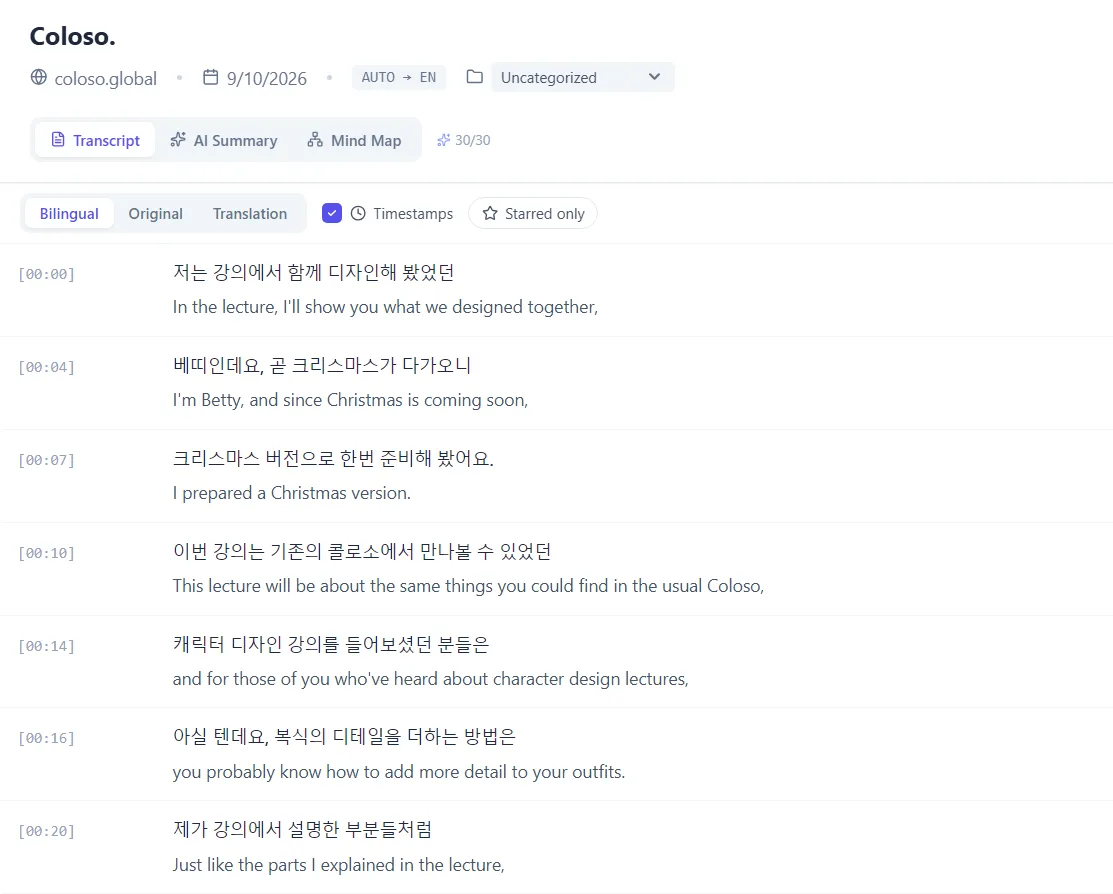
Every session saves a bilingual transcript, whether or not you kept the audio. Here is where it lives and what you can do with it.
What gets saved
A transcript holds every line, original and translation, with the timing kept. It is written as the session runs, so stopping a session is what files it, not a separate save step.
This happens on every session. The dubbed audio is the optional part — see Save and replay dubbed audio.
Find a session
- 1Open your history
Sessions are listed newest first. The extension and the desktop app share one history — a session recorded on the desktop shows up when you open history in the browser, and the other way round. In the browser, desktop sessions are marked Local video, with the video's length, or DubTab Desktop.
- 2Search inside it
Search works on what was said, in both languages. It is usually faster than scrolling to the part you remember.
- 3Copy or export
Copy pulls the lines straight to your clipboard. Export writes the transcript out as a file.
Common questions
Do I get a transcript even if I did not save the audio?
Yes. The transcript is saved on every session. Saving the dubbed audio is a separate setting that only affects whether the generated voice is kept as a recording.
Is the transcript bilingual?
Yes. Each line is stored in the original language and in the translation, with the timing kept, so you can check a translation against what was actually said.
Are sessions from the extension and the desktop app in the same place?
Yes. Both sign in to the same account and write to the same history, so it does not matter which one recorded a session.