Quick start with the browser extension
Install it, sign in, choose two languages and translate the tab you are already watching. About four minutes, most of it the install.
Install and sign in
DubTab runs in Chrome, Edge and Brave. All three install the same extension from the Chrome Web Store — there is no separate Edge or Brave build to hunt for.
- 1Add DubTab, then pin it
Open the Chrome Web Store listing and add it. Edge and Brave ask you to allow extensions from another store the first time — say yes. Then open the puzzle-piece menu in the toolbar and pin DubTab; you will be opening it often enough to want it there.
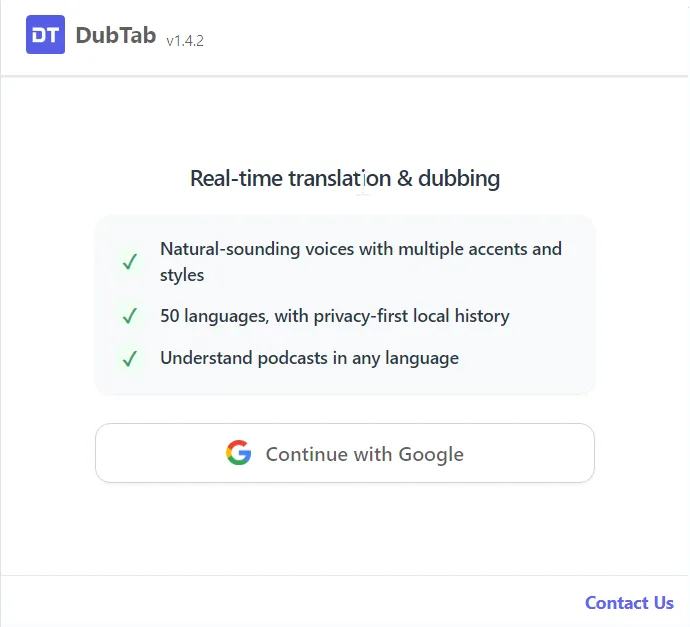
- 2Open the popup and sign in with Google
A free account gets 15 minutes of live captions and dubbing, one time, plus 3 AI credits. There is no card and no reset. Signing in happens in the popup and nowhere else.
Run your first translation
- 1Open the tab you want to translate
YouTube, Netflix, Zoom, Google Meet, a course player — anything with sound. Open DubTab whenever you like; the only thing that has to be true is that the tab is making sound at the moment you press Start, because that is when DubTab starts listening.
- 2Pick the two languages
Auto Detect works out the source language on its own, and it is the right choice when a session has several languages in it, or when you are not sure what you will hear. If you know the whole session is in one language, naming that language yourself gives noticeably better recognition — auto detection otherwise spends part of its accuracy on a question you have already answered.
- 3Press Start
The dock appears at the edge of the page. Subtitles come up within a couple of seconds, and the translated voice starts speaking over the original.
chrome:// URLs and the Chrome Web Store cannot be translated at all, in any of the three browsers, and no setting changes that.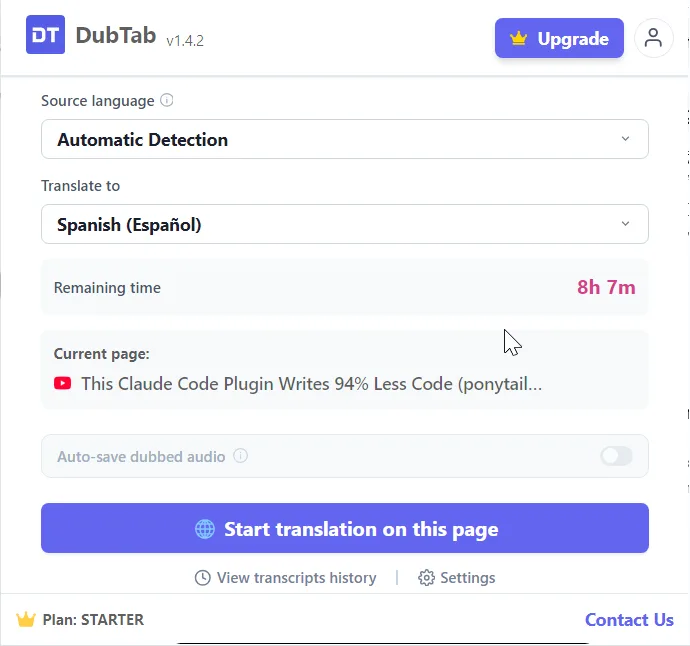
The dock
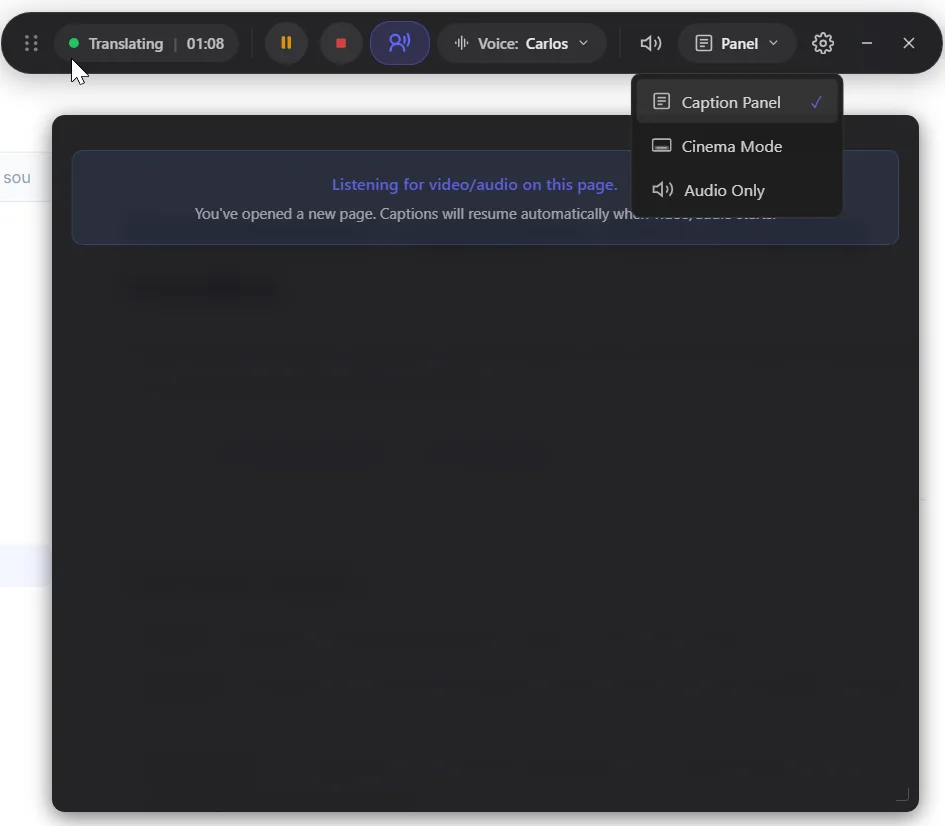
Once a session is live, everything you need sits in the dock at the edge of the page.
- Ready, Connecting, Translating — the dock always tells you which of the three it is in. If the connection drops it reconnects on its own and says so, counting the attempts.
- Pause is not Stop — pause freezes captions and dubbing, and paused time is never charged: no audio is sent, so no minutes are counted. Stop is the one that ends the session and saves it to your history.
- Panel, Cinema, Audio Only — three ways to show captions: docked beside the video, across the bottom of the screen, or not at all when you only want the voice.
- Voice and Audio Mixer — pick the dubbing voice and balance it against the original. See Choose a voice and adjust audio.
Common questions
Does it work in Edge and Brave?
Yes. DubTab runs in Chrome, Edge and Brave, and all three install the same extension from the Chrome Web Store. Edge and Brave ask for permission to install from another store the first time; after that it behaves exactly as it does in Chrome.
Nothing happens when I press Start.
The tab has to be making sound at that moment — DubTab captures the audio of the tab, so a paused or silent page gives it nothing to work with. The browser also blocks audio capture on its own pages: chrome:// URLs and the Chrome Web Store cannot be translated at all.
Does pausing use up my minutes?
No. While a session is paused no audio is sent, so no minutes are counted. Only time that is actually being translated is charged. Stop is the one that ends the session and files it in your history.
Should I use Auto Detect or name the source language?
Use Auto Detect when a session has several languages in it, or when you do not know what you will hear. If you are sure the whole session is in one language, naming it gives noticeably better recognition, because auto detection no longer has to spend accuracy deciding what it is listening to.