Real-Time Audio Translator for PC and Mac — hear any app in your language.
DubTab translates whatever your computer is playing — a class in the Zoom or Teams app, a video player, a game, a podcast, any browser. An AI voice says it in your language a few seconds behind, with live captions floating on top. Translate the whole computer, or pick just one app.
Free 15-minute trial · No credit card · One account with the Chrome extension
Your computer can caption. DubTab also speaks — in your language.
Windows 11's live captions show what's said in the speaker's language. Translation needs a Copilot+ PC — and even then it only goes into English or Chinese, as text.
Live Captions on a Mac writes down what's said without translating it. Apple Intelligence's Live Translation does translate — but only one-on-one FaceTime and Phone calls.
Meeting apps translate captions only on some paid plans, and only inside that app — not in your video player, a game or the Discord app.
An AI voice dubs any app in your language a few seconds behind — on any Windows 11 PC, and on Macs with macOS 14.2 or later.
Live captions float on top of whatever you're watching, with the original line next to the translation if you want it.
60+ languages for the voice and the captions — and video files are prepared a little ahead, so the dub keeps pace.
Translate your computer's audio in 3 steps
1. Download DubTab
For Windows 11, or macOS 14.2 and later on Apple silicon or Intel. Sign in with Google — the free trial is included.
2. Choose what it listens to
Computer audio for everything, One specific app for just one — or open a video file from your computer.
3. Pick your language and start
Press Start translation. The AI voice starts within seconds, and captions float over the app you're watching.
Made for everything your computer plays
Any app, or the whole computer
Computer audio hears everything that plays. One specific app translates just the class, the player or the game — notifications and music stay out of it.
Live dubbing, seconds behind
The voice follows the speaker a few seconds behind and stays there through a long class or call — listen while your eyes stay on the slides, the code or the screen.
Captions over every window
Bilingual captions float on top of whatever is in front. Turn on click-through and the mouse passes straight through them; Cinema tucks the main window away and leaves just the captions on screen.
The original stays underneath
Two volume sliders: one for the original, one for the translated voice. Keep the speaker faintly underneath, or turn the original all the way down.
One account, both apps
The desktop app and the Chrome extension share one plan, one balance of hours and one history — on Windows and on Mac.
Runs in the background
Hotkeys start and pause it from any app, the tray keeps it going when the window is closed, and it pauses itself when nobody has spoken for a few minutes — paused time is free.
Already have the video on your computer?
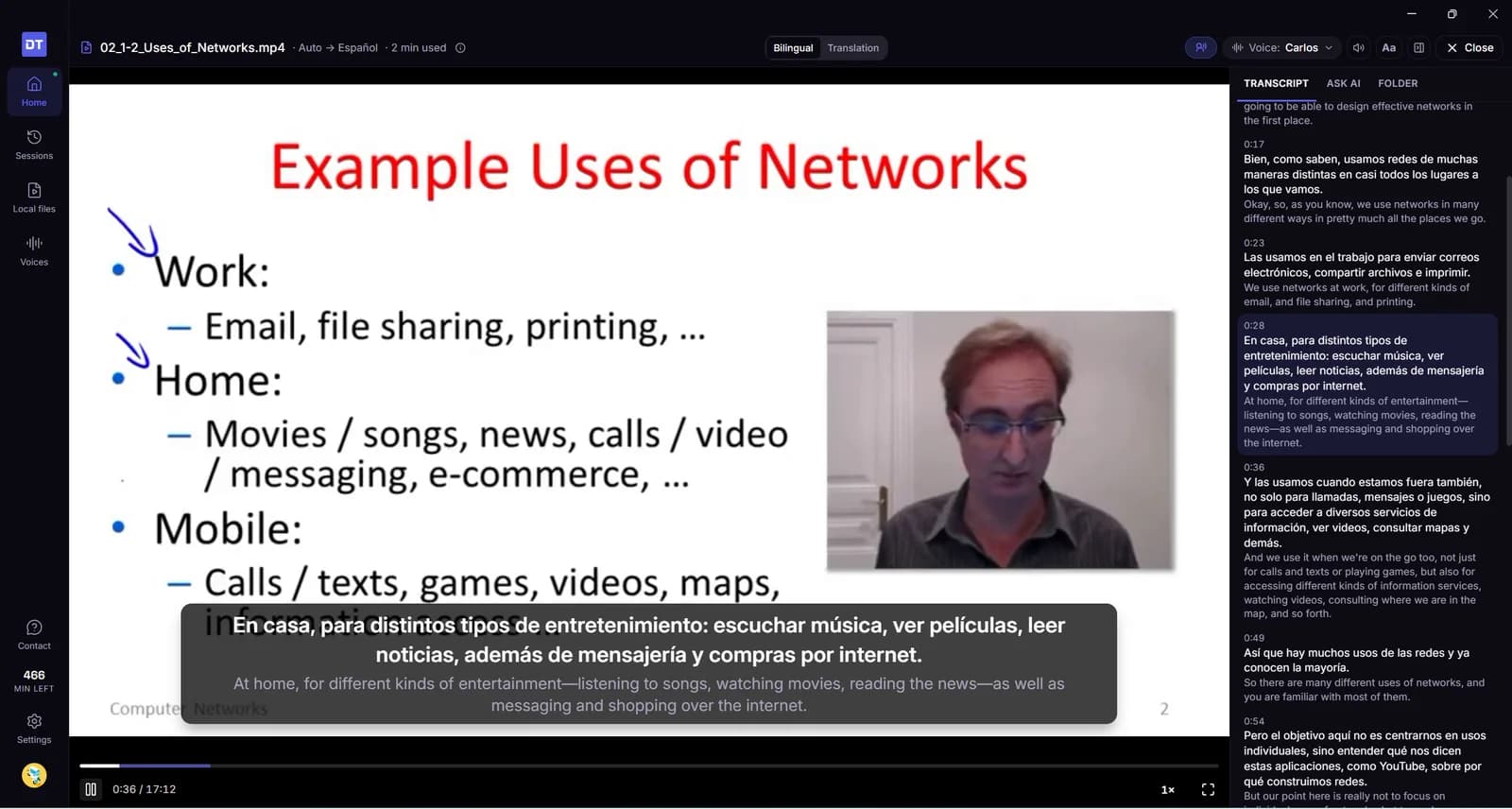
Open it in DubTab. The dub is prepared a little ahead of where you are, so the voice keeps pace with the picture.
Drop in a file, or a whole course
MP4, MKV, MOV or WebM. Drop a course folder and DubTab opens the lesson you were on — and offers the next one when it ends.
Prepared ahead, so it stays in sync
Each line is ready a little before you reach it, so the voice doesn't trail behind the picture. Only the first lines take a few seconds.
Rewatch for free
Parts already prepared play again for free on the same computer — handy when you go back over a lesson.
The video file stays on your computer — it isn't uploaded, and the picture is never sent.
What people translate on their computer
Anything with sound — usually something you mostly listen to.
Classes & webinars in Zoom or Teams
A lecture, a webinar or an all-hands where you mostly listen. Hear the speaker in your language without asking the host to switch anything on.
Downloaded courses & video files
Saved lessons, recorded classes, conference talks — open the file in DubTab and the dub is prepared ahead, or play it in VLC or any player you like.
Trading rooms & calls in the Discord app
Live market sessions and community calls in the Discord app — hear the reasoning in your language while you watch the chart.
Safari, Firefox — any browser
The DubTab extension runs in Chrome, Edge and Brave. The desktop app hears every browser, Safari and Firefox included.
Games with voice
Voiced story scenes, cutscenes and in-game voice chat, dubbed and captioned as they play. It translates what the game says — not the text on screen.
Podcasts & talks
Podcasts in Spotify or any audio app, interviews and recorded talks — anything you'd rather listen to than read.
Doesn't my computer already translate this?
Partly. Windows 11 and macOS can caption what's playing; Copilot+ PCs can translate those captions into English or Chinese, and Macs with Apple Intelligence translate one-on-one FaceTime and Phone calls. DubTab translates the sound of any app, adds the voice, covers 60+ languages, and runs on any Windows 11 PC or Mac with macOS 14.2 or later.
| What you're using | What it gives you | DubTab |
|---|---|---|
| Windows 11 live captions | Captions in the speaker's language — no translation on most PCs | ✓ Voice + captions in your language, on any Windows 11 PC |
| Live captions on a Copilot+ PC | Translated captions — into English or Chinese (Simplified) only | ✓ 60+ languages, with an AI voice as well as captions |
| Live Captions on a Mac | Captions in the speaker's language, on Apple silicon Macs | ✓ Voice + captions in your language — Apple silicon or Intel, macOS 14.2+ |
| Live Translation on a Mac (Apple Intelligence) | One-on-one FaceTime and Phone calls only, in about 10 languages | ✓ The sound of any app, in 60+ languages — Apple silicon or Intel |
| Translated captions in Zoom or Teams | On some paid plans — captions only, inside that app | ✓ Works whatever the host has set up — and in every other app |
| A Windows 10 PC | No live captions — they need Windows 11 | The desktop app needs Windows 11 — use the Chrome extension for browser tabs |
Captions show it. DubTab also says it.
Built-in captions put the words on screen, and DubTab's captions do that too. What they don't do is speak: DubTab adds an AI voice in your language, so you can keep your eyes on the slides, the code or the game and glance at the captions when you want to.
The whole computer, or just one app.
Computer audio hears everything that makes a sound — notifications and music included. For a class or a call, choose One specific app and DubTab ignores the rest. It remembers the choice next time.
A few seconds behind — and it stays there.
Live sound has to be heard before it can be said in your language, so the dub runs a few seconds after the speaker, and DubTab keeps the gap from growing over a long session. Video files are different: the dub is prepared a little ahead, so it keeps pace with the picture.
Frequently asked questions
Everything your computer plays — in your language.
Download once. The next class, call or game, you're already listening in your language.
Download free for Windows & MacFree 15-minute trial · Windows 11 · macOS 14.2+ · One account with the Chrome extension