Captions, voice and original audio on Android
Which voice dubs, what the captions show and where they sit, and how much of the original you still hear underneath. It all starts from Home.
Pick a voice
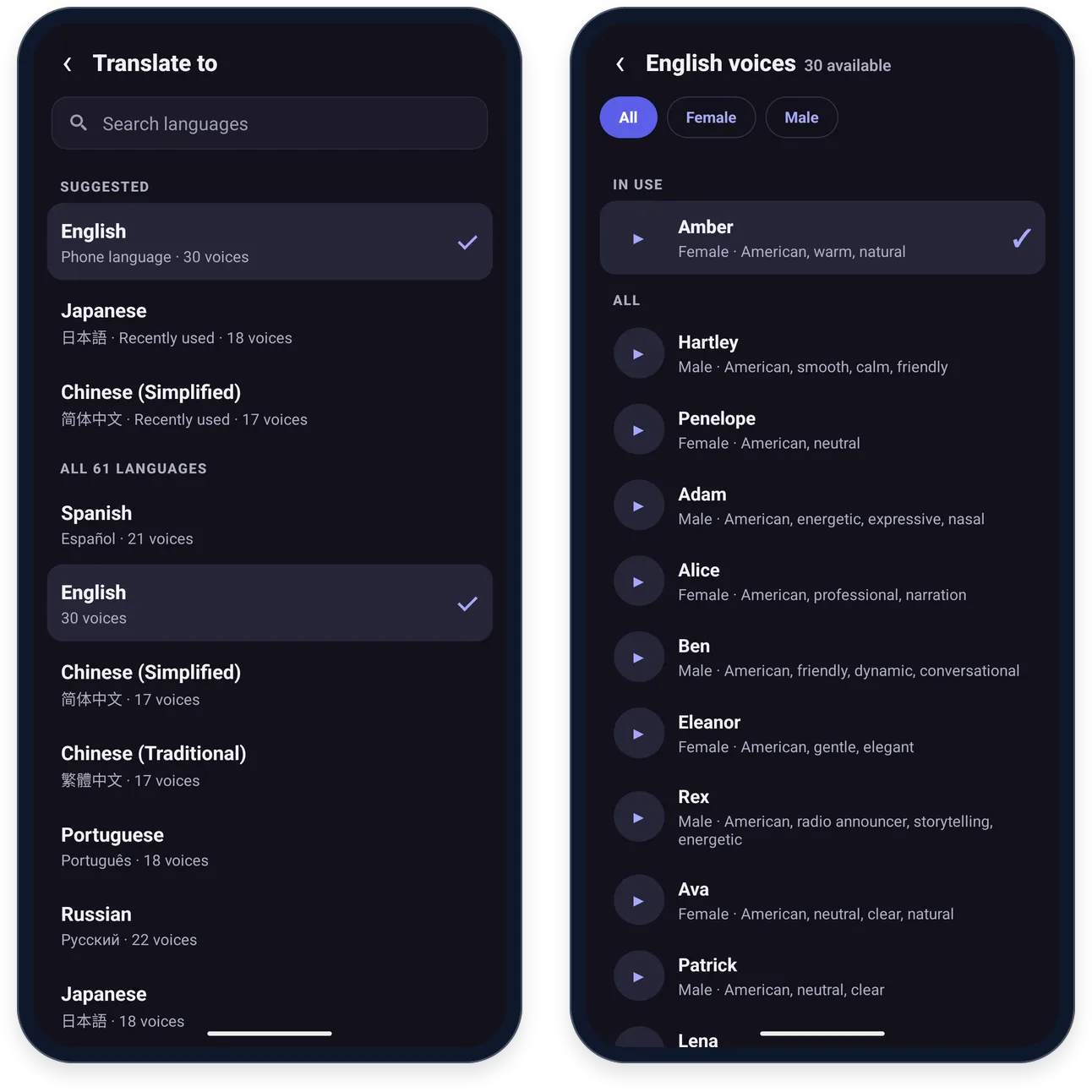
On Home, tap the voice under the two languages. The list shows the voices for the language you translate into — “English voices”, for example.
- All, Female and Male filter the list. The voice you are using stays at the top, under In use.
- The play button beside each voice plays a sample. Tap the voice itself to pick it.
- Translate to has a Search languages box, lists your phone's language and the ones you used recently under Suggested, and shows how many voices each language has.
Caption style
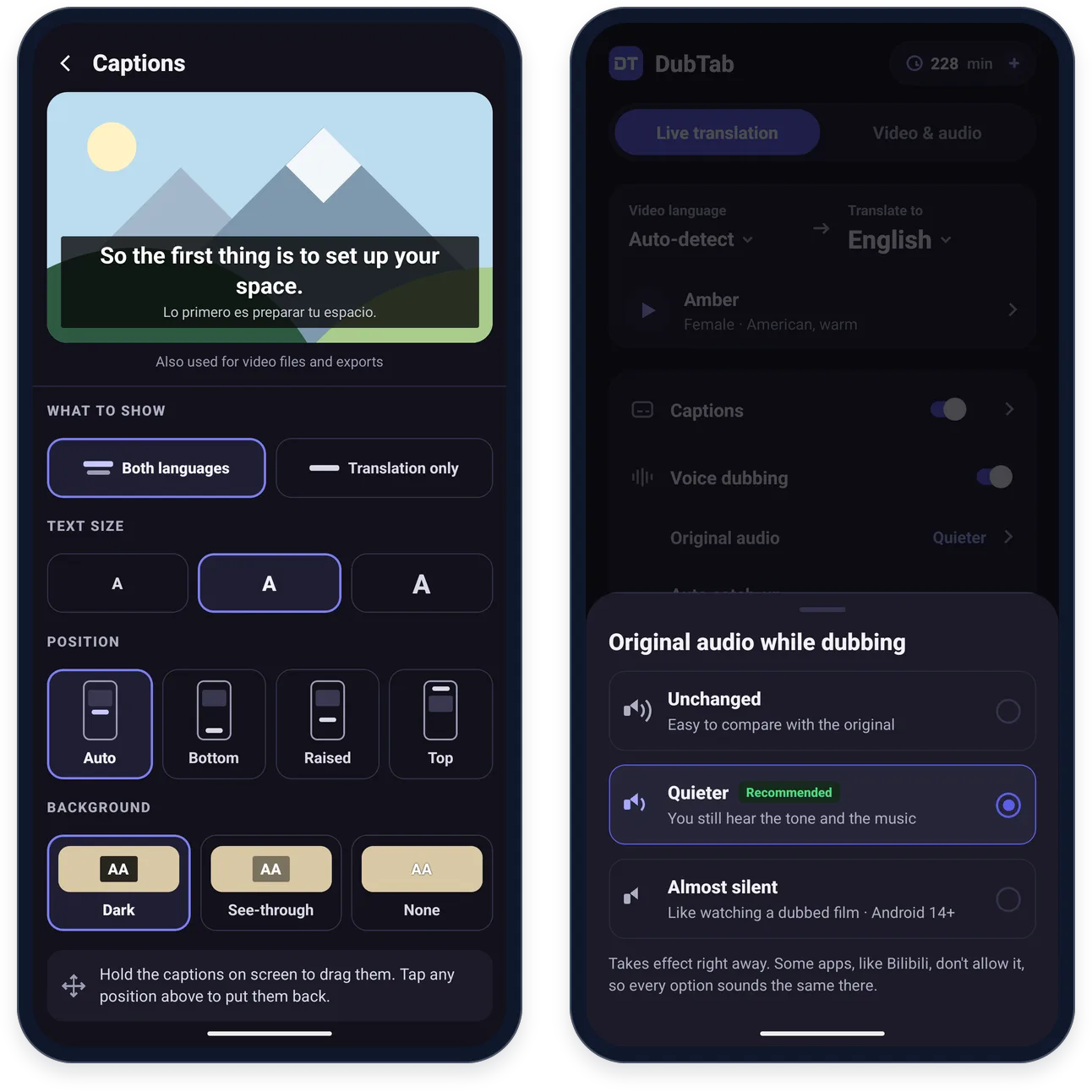
Tap › next to the Captions switch on Home. The page that opens has a preview at the top that shows how they will look.
- What to show: Both languages, or Translation only, which is about half as tall.
- Text size: Small, Medium or Large.
- Position: Auto, Bottom, Raised or Top. Auto puts them just under the video when the phone is upright and at the bottom in full screen. If the video has its own subtitles, pick Raised so yours don't cover them.
- You can also hold the captions on screen for a moment and drag them up or down. DubTab remembers that spot separately for upright and full screen; tapping any position here puts them back.
- Background: Dark, See-through or None. With None, only an outline is left around the text, which is hard to read on bright scenes.
The same style is used for the floating captions, for video files, and for subtitles burned into an exported video.
How loud the original stays
Original audio, under Voice dubbing on Home, sets what happens to the video's own sound while the dub plays. It only applies while Voice dubbing is on.
- Unchanged — the original keeps its volume. Useful for comparing with the original speech.
- Quieter (Recommended) — the original drops well below the voice, but you still hear the tone and the music. About the same as the browser extension's default.
- Almost silent — mostly just the dub, like watching a dubbed film. Needs Android 14 or later.
The change takes effect right away, even in the middle of a video.
When the voice falls behind
Auto catch-up speeds the voice up when it falls behind the video. Turn it off if the voice feels rushed. Manage dubbing delay explains the trade-off.
Captions only, or no captions for a while
- Turn Voice dubbing off on Home for captions only, with no dubbed voice.
- To clear the captions off the screen for a while, tap the purple edge on the right of the screen and use the captions button, second from the top. It hides the captions without stopping the session; tap it again to bring them back.
Common questions
Why do all three Original audio options sound the same?
Some apps, Bilibili among them, don't let other apps change their volume, so DubTab can't lower the original there. In other apps the change takes effect right away, even in the middle of a video. Almost silent also needs Android 14 or later, and none of the options apply while Voice dubbing is off.
Can I get captions without the dubbed voice?
Yes. Turn off Voice dubbing on the Home screen and DubTab shows captions only, with no dubbed voice.
DubTab's captions cover the video's own subtitles. What can I do?
Hold DubTab's captions on screen for a moment and drag them out of the way. To change the default, tap › next to the Captions switch on the Home screen and set the position to Raised so yours don't cover them; Top moves them to the top of the screen instead.