Quick start with the Android app
Pick two languages, press Start, then play a video in another app. DubTab hears it and floats translated captions and a dubbed voice over the picture.
Install and sign in
- 1Install DubTab from Google Play
Get DubTab on Google Play. It runs on Android 10 or later.
- 2Sign in with Google
Use Sign in with Google on the Account tab, or just press Start — DubTab asks you to sign in first.
Pick your languages and voice
Home has two tabs. Live translation, covered here, translates a video playing in another app. Video & audio dubs a file on your phone — see Dub a video file on your phone.
- 1Choose the video language
Leave Translate from on Auto-detect and DubTab works it out, or pick the one language the video is in. Recognition is better when you name it.
- 2Choose the language to hear
Pick it under Translate to. Each language in the list shows how many voices it has; the few marked Captions only get captions but no dubbed voice.
- 3Pick a voice
The row under the two languages is the dubbing voice. Tap it to see every voice for that language and play a sample before you pick. Captions, voice and original audio on Android has more.
- 4Choose captions, dubbing or both
Captions and Voice dubbing are separate switches. Keep both on, or turn Voice dubbing off for captions only.
Let captions float over other apps
The first time, DubTab asks for one permission, Display over other apps, so its captions can sit on top of the app you are watching. Allow in Settings takes you to Android's settings to turn it on — the wording there varies a little between phone makers.
Or choose Skip — run without the floating captions and allow it later: Captions don't float over the video shows where.
Press Start and allow screen capture
- 1Press Start
The first two times, DubTab first tells you what Android is about to ask and what it uses: audio from other apps, yes; screen frames, never read; the microphone, never turned on. Tap Got it, continue.
- 2On Android 10 to 15, allow the microphone permission
Android asks once. It requires this permission before an app can capture audio from other apps; DubTab never turns your microphone on. Android 16 and later do not ask.
- 3Confirm Android's screen-capture prompt
Android shows it every time you press Start — it cannot remember the answer. DubTab asks for the entire screen, so there is nothing to choose: just confirm. The wording depends on your phone's maker, and some phones add an extra privacy or protection page — confirm that too.
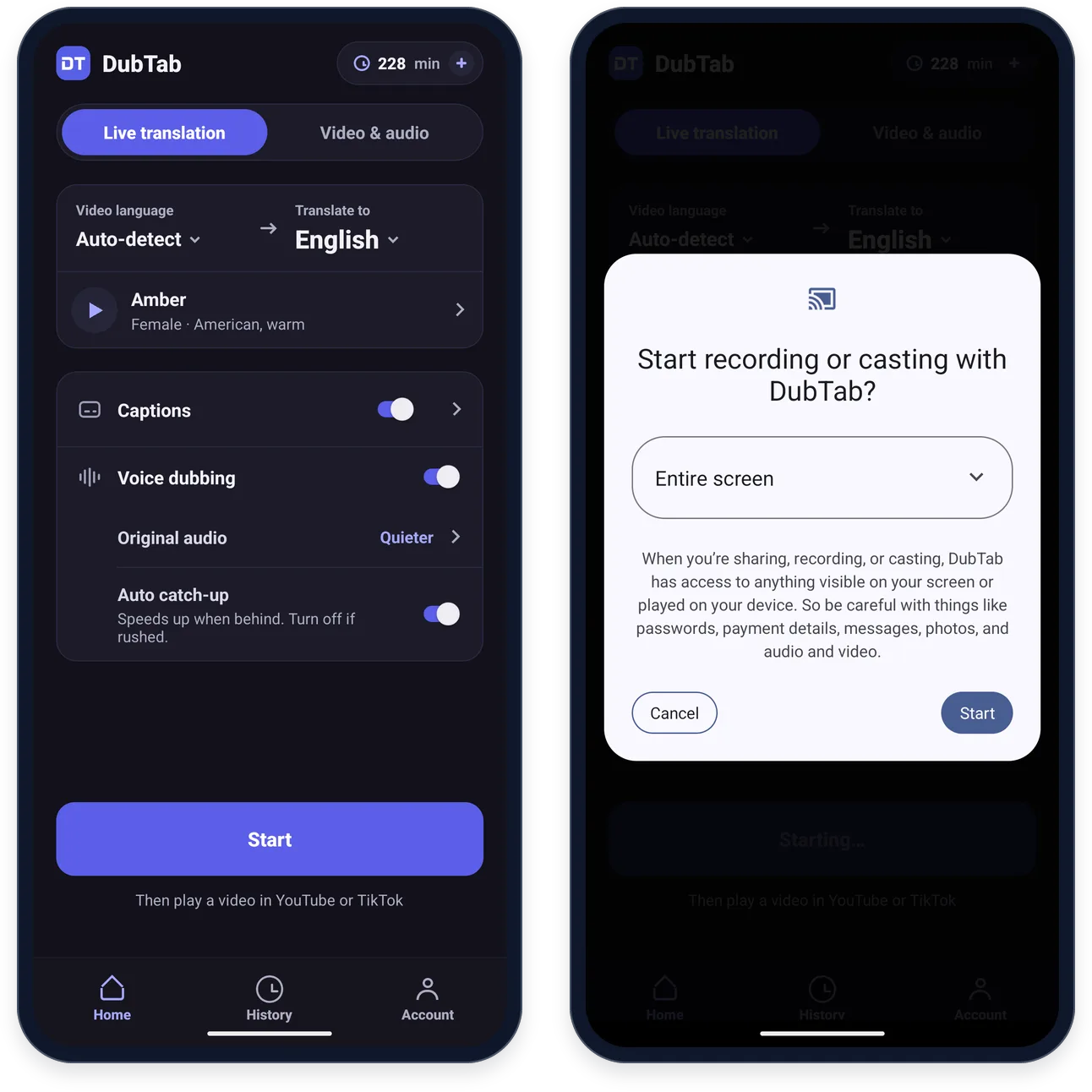
Play the video
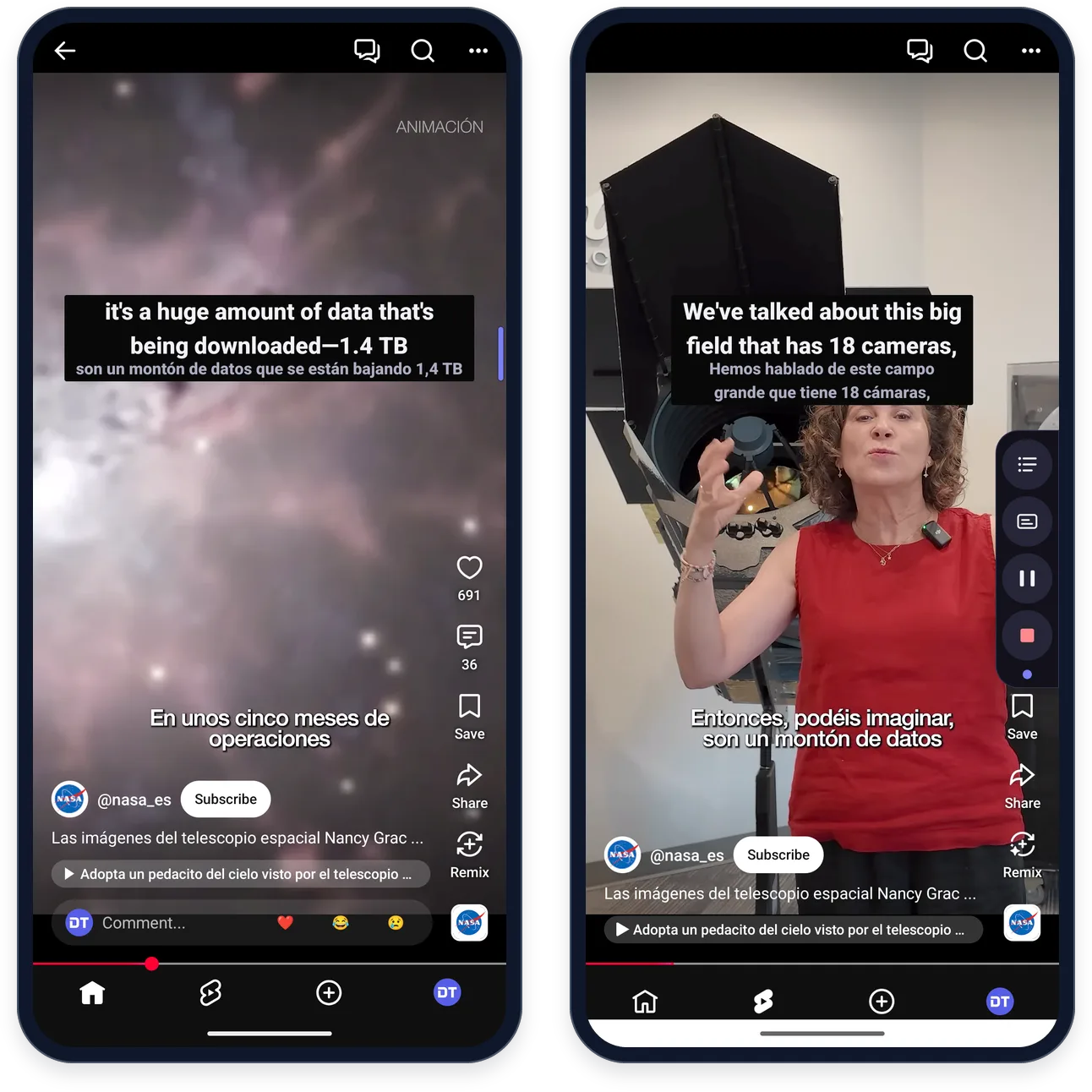
Open the app with the video and play it. While DubTab waits for sound, its Live page shows shortcuts to video apps on your phone, such as YouTube, Twitch and TikTok — tap one to open it. Until someone speaks, a card says “DubTab is listening”. Then the captions float over the video and the dubbed voice plays over the original.
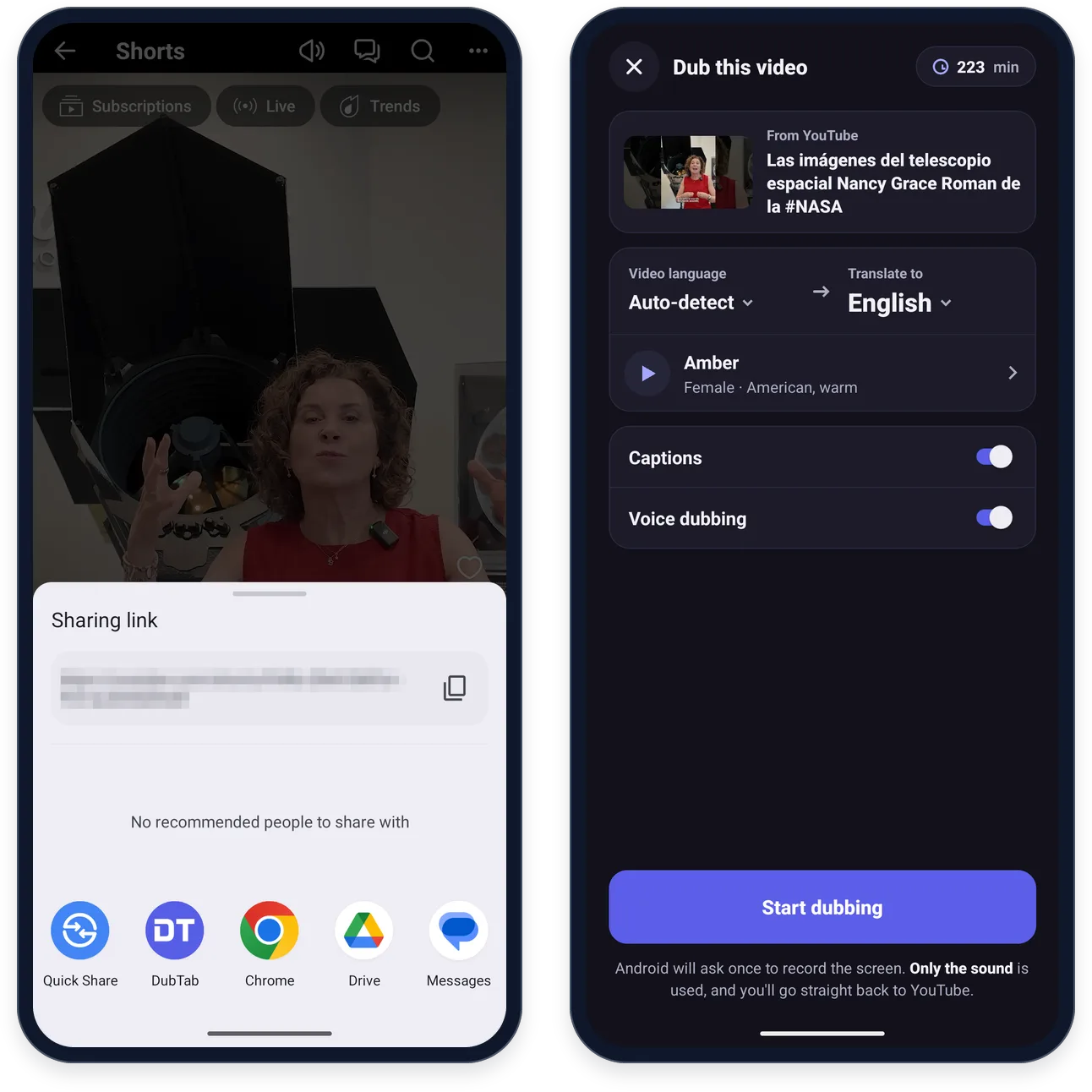
Or start from the video itself
Found the video first? Start from there: DubTab uses the languages and voice you set on Home, and takes you straight back to the video.
- 1Tap Share on the video, and pick DubTab
In YouTube, Share is under a video or on the right of a Short. If DubTab isn't in the first row of apps, look under More.
- 2Check the details, then press Start dubbing
“Dub this video” shows which video it is, Translate from, Translate to, the voice, and the Captions and Voice dubbing switches.
- 3Allow the screen capture, and play the video
Android asks for screen capture access, as it does when you press Start on Home; DubTab uses only the audio. Then you are back in the video.
The purple edge
While a session runs, DubTab's controls wait as a purple edge on the right of the screen. The first time you leave DubTab during a session, they stay open for a few seconds under “These are DubTab’s controls”, with a short explanation — tap Got it to close it.
- Tap the purple edge to open the control bar. Top to bottom: transcript, captions on/off, pause, stop. After a few seconds it shrinks back to the edge.
- Hold and drag the edge to move it.
- The captions move too: hold them for a moment, then drag them up or down. DubTab remembers the spot separately for upright and full screen.
- The notification has Pause (Resume while paused) and Stop as well.
Transcript and the Live page
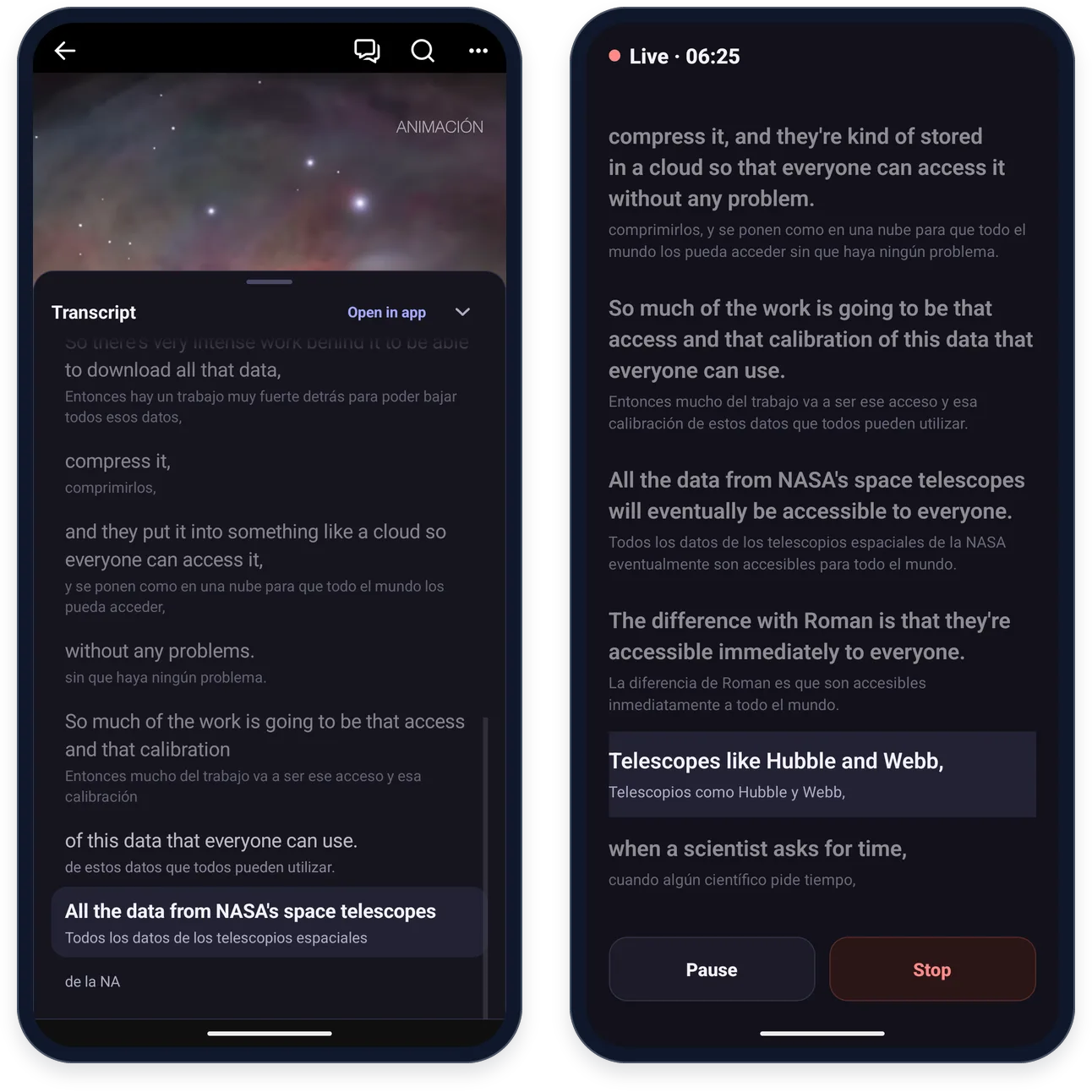
The transcript button on the control bar pulls up a Transcript drawer over the video: every line in both languages, with the one being dubbed highlighted. Open in app takes you to the Live page in DubTab, with the session timer, the same lines, and Pause and Stop.
Scrolled up to reread something? Latest captions jumps back to the newest line.
When you stop
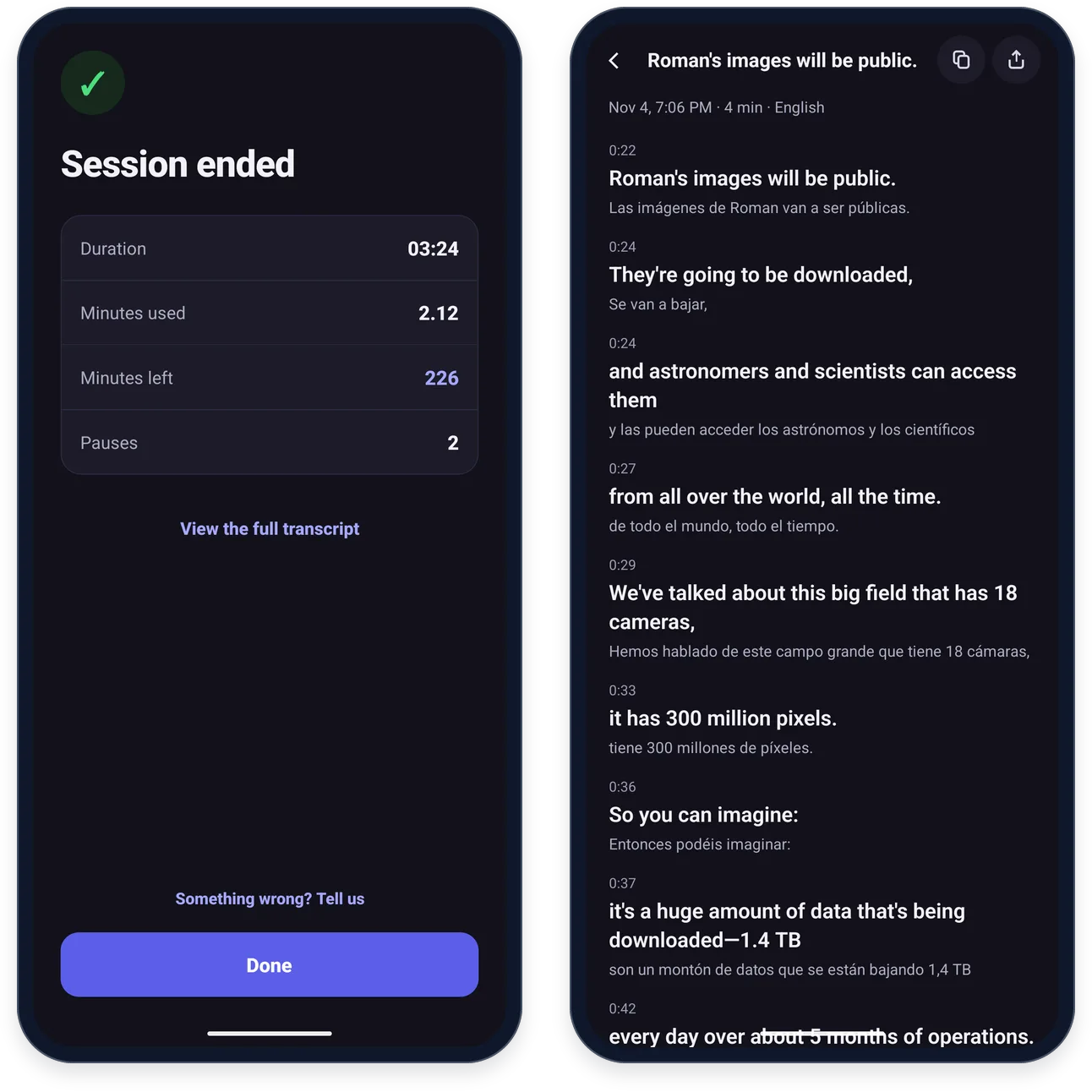
Stop from the control bar, the notification or the Live page. “Session ended” shows the Duration, Minutes used, Minutes left and Pauses, and View the full transcript opens every line with its time.
Every session — from your phone, the browser extension or the desktop app — appears in the History tab. A live session from your phone is named after its first translated line.
Common questions
Does DubTab record my screen?
No. Android lets one app hear another only through its screen-capture permission, so that is the prompt you see when you press Start. DubTab uses the audio alone: it never reads or saves a frame of your screen, and it never turns the microphone on.
Why does Android ask for screen capture every time?
Android cannot remember that permission, so it asks each time you press Start. Just confirm it — DubTab asks for the entire screen, so there is nothing to pick, and the exact wording depends on your phone's maker. On Android 10 to 15 there is also a one-time microphone permission, which Android requires before an app can capture audio from other apps. DubTab never turns the microphone on.
Which apps does it work with?
Apps that let other apps hear them, such as YouTube, TikTok, Twitch and Chrome. Some apps don't — the Udemy app, for one — and there the website in your phone's browser usually works instead. Copy-protected apps like Netflix and Disney+ block it in the app and in the browser, and Android keeps calls in Zoom, Meet, WhatsApp and similar apps private from every other app.
How do I get more minutes in the app?
Tap Get more next to your minutes at the top of Home, or Get more minutes on the Account tab. Subscriptions and top-ups are paid through Google Play and land on the same account you use in the browser extension and the desktop app. To cancel a subscription bought in the app, see Manage or cancel your subscription.
Is there an iPhone or iPad version?
It's coming soon to the App Store. Until then, DubTab on phones and tablets is Android only. On a computer, the browser extension and the desktop app use the same account, minutes and history as the Android app.
Does it use minutes while the video is paused?
Yes. Minutes count while the session runs, whatever the video is doing. Pause or stop DubTab from the purple edge on the right of the screen or from its notification. If there is no sound for 5 minutes, DubTab stops the clock on its own and picks up again when sound comes back.