No captions or sound on Android
Start from what you see over the video: DubTab's floating card usually names the cause. The session keeps running meanwhile, so stop it if you are not using it.
What the floating card says
When DubTab has nothing to translate, a card floats over the video and says why. Find the one you see:
- “DubTab is listening” — it is waiting for speech. Play the video, and captions appear once someone talks.
- “No sound yet” — make sure the video is playing and not muted. Some apps don't let other apps hear them — the Udemy app, for one. Open the same video on the website in your phone's browser instead.
- “This app doesn’t let other apps listen” — copy-protected apps like Netflix and Disney+ block it, so DubTab can't translate there. It works in apps like YouTube.
- “On a call — Android won’t let apps listen” — Android keeps calls in Zoom, Meet, WhatsApp and similar apps private. DubTab picks up again after the call.
- “Can’t hear this app” — the app may not let other apps listen (try its website in your phone's browser), or it is muted.
When DubTab pauses by itself
- After 5 minutes with no sound, DubTab stops the clock and shows “Paused automatically”. It carries on by itself when sound comes back.
- If the app blocks capture, that happens after 1 minute instead.
- If it stays paused for 30 minutes, the session ends.
Captions don't float over the video
Android has to allow DubTab to show captions on top of other apps. If you skipped that the first time, or it has been turned off, allow it in Android's settings: Settings › Apps › DubTab › Display over other apps. The wording varies by phone maker.
Problems when you press Start
- “Screen capture was declined. DubTab needs it to hear other apps.” — Android's screen-capture prompt was turned down. Press Start again and allow it.
- Blocked the microphone permission, on Android 10 to 15? Android won't ask again, so turn it on in Settings › Apps › DubTab › Permissions › Microphone. Android requires it to capture audio from other apps; DubTab never turns your microphone on.
- “Too many DubTab sessions are open on this account. Close the others and try again.” — close DubTab wherever else it is open on this account, such as the browser extension, the desktop app or another phone, then press Start again. If it keeps happening with nothing else open, report it (below).
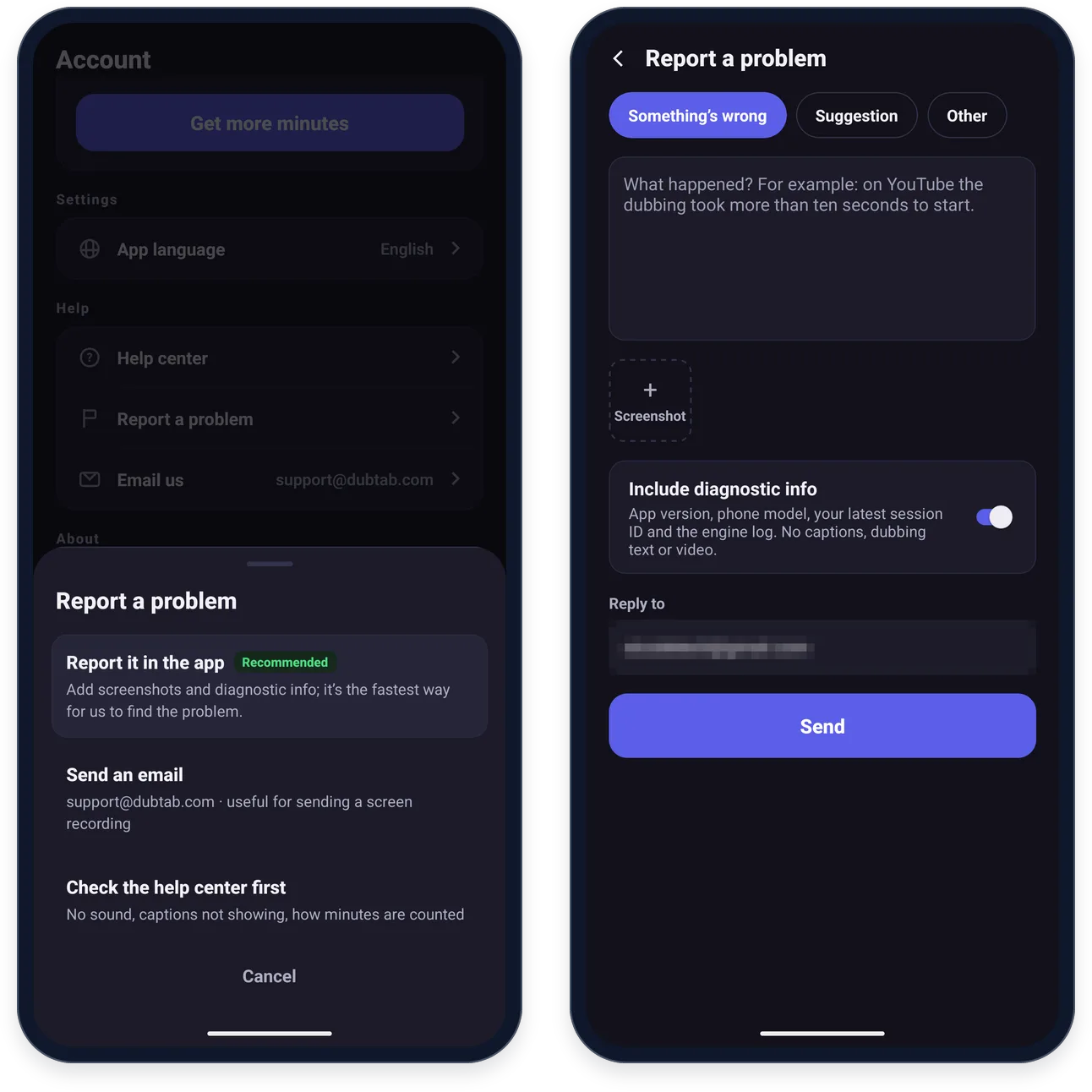
Report it from the app
- 1Go to Account › Report a problem
Choose Report it in the app.
- 2Say what happened
Pick a category — Inappropriate translation or dubbing if a caption or the dubbed voice said something offensive or harmful — describe the problem, and add screenshots with Screenshot.
- 3Include the diagnostic info, and send
Every report carries the app version, your Android version and your phone model. With Include diagnostic info on, it also carries your latest session ID and the engine log — never captions, dubbing text or video. Then press Send.
Prefer email? Write to [email protected] — the easier way to send us a screen recording.
Common questions
Why can't DubTab translate Netflix or Disney+ on my phone?
They are copy-protected and don't let other apps hear their sound, so DubTab has nothing to translate. No setting in DubTab changes that. It works in apps like YouTube, TikTok and Twitch.
Why can't DubTab hear the Udemy app?
The Udemy app doesn't let other apps hear its sound, so DubTab gets silence there. Open the course on udemy.com in your phone's browser, such as Chrome, and play it there: DubTab can hear the browser.
Can DubTab translate a Zoom, Meet or WhatsApp call on Android?
No. Android keeps call audio private from other apps, so DubTab can't hear it. It picks up again once the call is over. The session keeps running in the meantime, so stop it if you are not using it.
Do I lose minutes if I forget to stop DubTab?
If nothing is playing, only a few: after 5 minutes with no sound DubTab stops the clock and shows Paused automatically, and after 30 minutes paused the session ends. If a video keeps playing, though, DubTab keeps translating it and counting minutes, so stop it when you are done.