Dub a video file on your phone
DubTab can play a video or audio file from your phone with a dubbed voice and subtitles, then save a copy with the dub in it. Anything already dubbed plays again for free.
Open a file
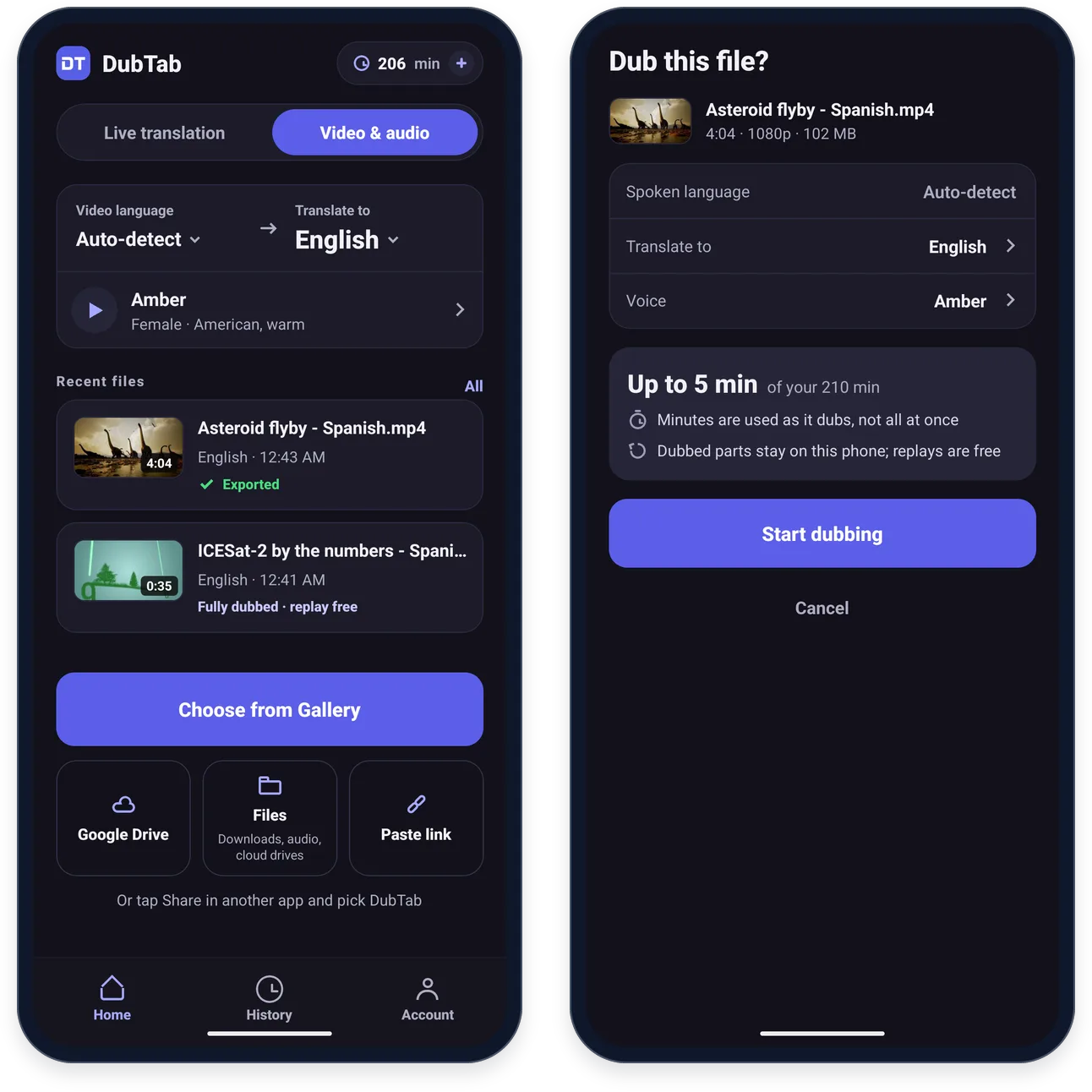
- 1Open the Video & audio tab
It is the second tab on Home, next to Live translation.
- 2Pick the file
Choose from Gallery for videos on your phone. In the row underneath, Google Drive opens Google Drive (when its app is installed), Files covers downloads, audio files and other cloud drives, and Paste link takes a video's link — see Dub a video from a link. You can also tap Share on a video in your gallery and pick DubTab.
- 3Check the details, then press Start dubbing
“Dub this file?” shows Translate from, Translate to and Voice, and the most the file can cost — “Up to 2 min of your 224 min”, for example.
Dub a video from a link
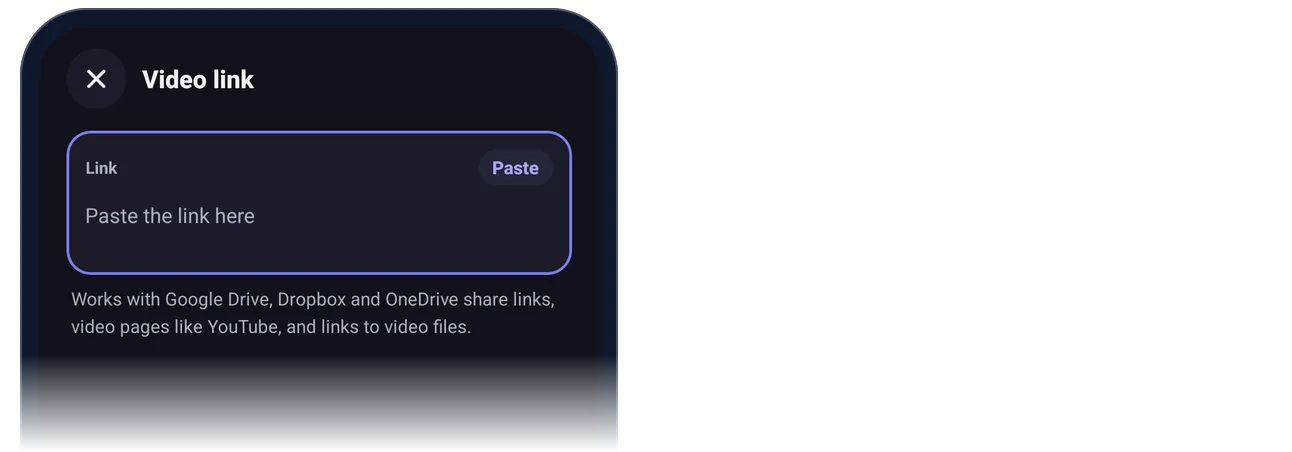
Paste link opens “Video link”: paste the address there, or with Paste. It works with Google Drive, Dropbox and OneDrive share links, video pages like YouTube, and links to video files. You can also tap Share on a link in another app and pick DubTab.
- For a file on Google Drive, Dropbox or OneDrive, or a link to a video file, Dub the whole video downloads it to your phone first — Wi-Fi recommended; on mobile data DubTab asks before it starts. Press Download and dub. It downloads in the background, so you can switch apps or lock the phone; when it is done, your recent files on Video & audio show “Downloaded · Tap to start dubbing”. From then on it is a file like any other: replays are free and you can export it.
- Dub as it plays skips the download: DubTab opens the link and dubs what it hears while it plays.
- A link to a video page like YouTube is dubbed live while the video plays in its own app — see Or start from the video itself.
Watch while it dubs
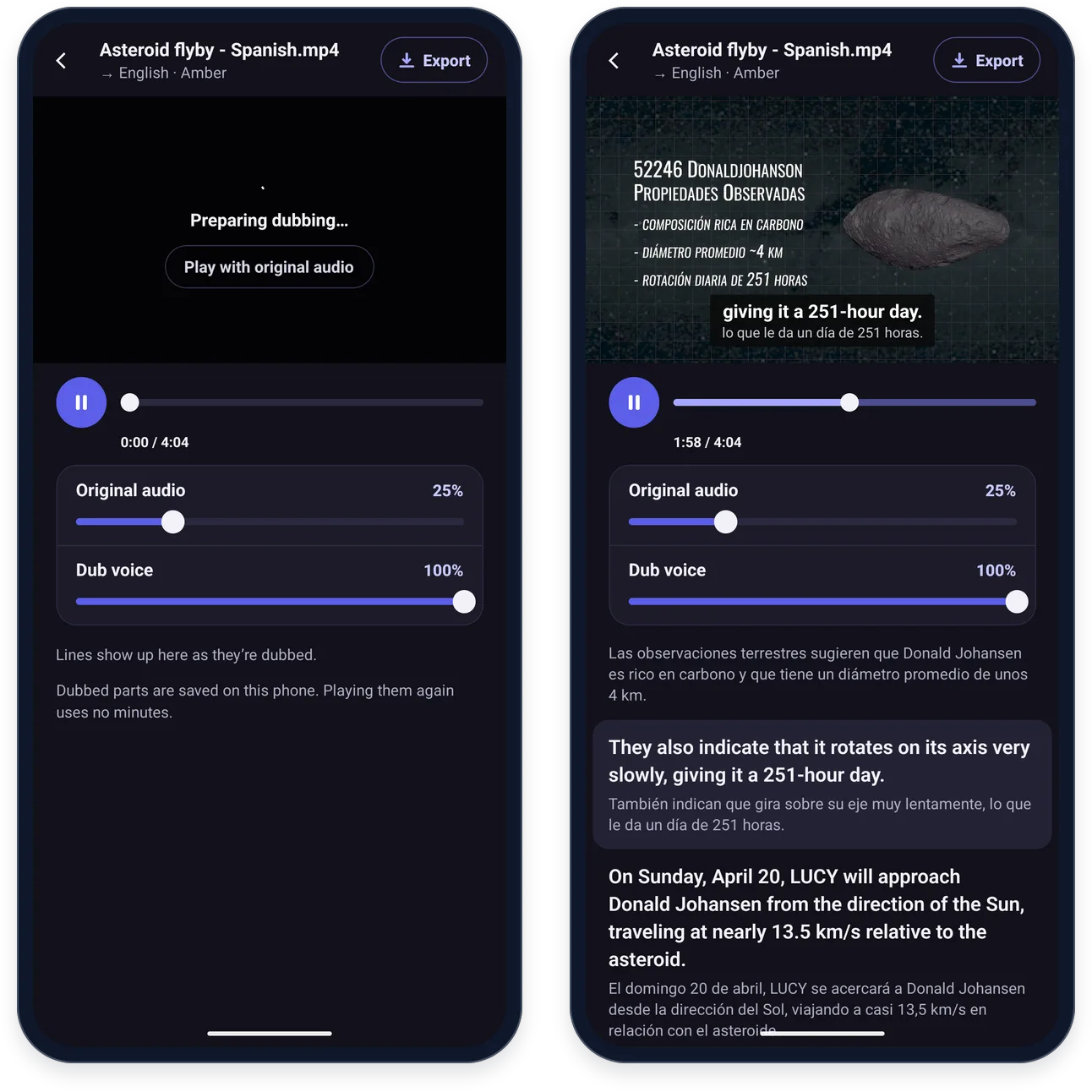
The file plays in DubTab at normal speed, and the sections coming up are dubbed one or two minutes ahead of where you are. Right at the start you see “Preparing dubbing…” — press Play with original audio if you would rather start watching straight away.
- Original audio and Dubbing volume set the balance between the two. The original starts at 25%.
- The lines appear under the player as they are dubbed, in both languages.
- A part that cannot be dubbed plays with the original sound: “This part couldn’t be dubbed. Playing the original sound.”
- A part already in the language you are translating into pauses the dubbing. Press Keep dubbing to carry on.
How minutes are counted
- Minutes are deducted as the dubbing goes, by the duration processed — not all at once when you start.
- Dubbed parts stay on your phone, and playing them again uses no minutes. Open a file that is already dubbed and DubTab says “Already dubbed on this phone” and offers Play — or, if you stopped partway, Continue from 1:10 and Start from the beginning.
- Your files are marked “Fully dubbed · replay free” once every part is dubbed, and “Exported” once you have saved a copy — in the recent files on Video & audio and in History.
Save a copy with the dub
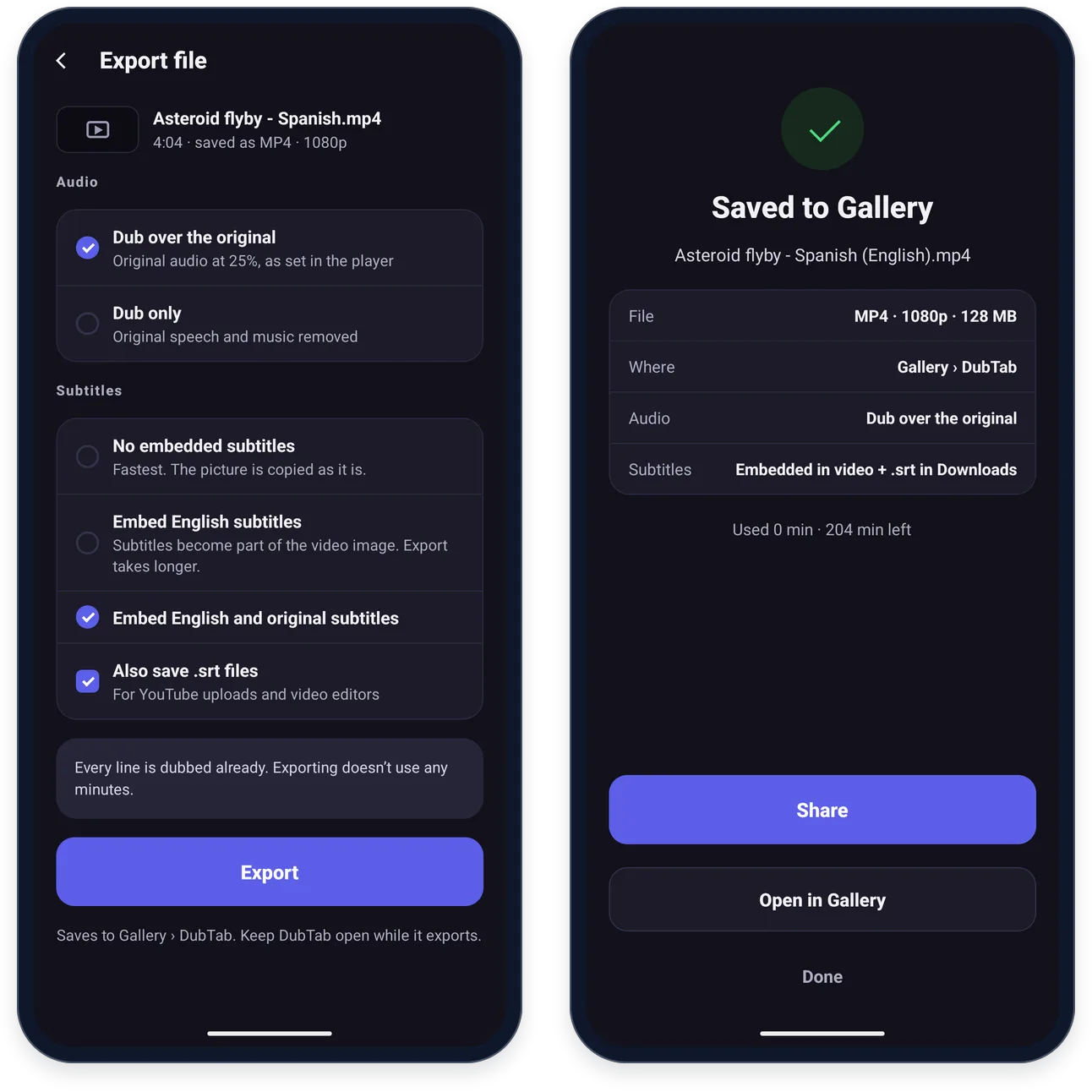
Export, at the top right of the player, saves a new file with the dub in it. You choose:
- The audio. Dubbing with original audio keeps the original underneath, at the percentage you set in the player; Dubbing only removes the original speech and music.
- The subtitles. No embedded subtitles is the fastest. Embed English subtitles and Embed English and original subtitles — named after the language you translated into — make the subtitles part of the picture, so the export takes longer.
- Also save .srt files keeps the subtitles as separate files as well, for YouTube uploads and video editors.
If every line is dubbed already, exporting uses no minutes. If not, the export finishes the remaining dubbing first, faster than normal playback, and shows how many minutes that will use before you start.
- Videos are saved to Gallery › DubTab, audio files to Music › DubTab, and .srt files to Downloads › DubTab.
- The new file is named after the original, with the language added: Asteroid flyby - Spanish (English).mp4, for example.
- When it is done, Share sends the file on, and Open in Gallery (Open, for audio) opens it.
If a file won't open
- “This file can’t be opened” — it may be damaged, or in a format phones can't play. AVI, WMV and FLV files usually aren't playable.
- “This phone can’t read this file’s sound” — the sound is probably Dolby Digital (AC-3) or DTS, which most phones can't decode. Convert the sound to AAC with any video converter, then open the file again.
- “This phone can’t play this video” — the picture is in a format the phone can't decode. A copy in H.264 (MP4) will work.
- “This file has no sound” — there is nothing to dub. Choose a file with speech in it.
Common questions
Does playing a dubbed file again use minutes?
No. Dubbed parts are saved on your phone, and playing them again uses no minutes. Minutes are only used for parts that have not been dubbed yet, deducted as the dubbing goes by the duration processed. Exporting a file whose every line is already dubbed uses no minutes either.
Why do I have to stop live translation before dubbing a file?
Live translation hears whatever plays on your phone. If it is running while a file plays in DubTab, it captures the file's audio and dubs it a second time. Stop the live session first, then play the file.
Which files can I dub on my phone?
Video files your phone can play, such as an MP4 with H.264 video, and audio files. AVI, WMV and FLV files usually don't play on phones, and most phones can't decode Dolby Digital (AC-3) or DTS sound: convert the sound to AAC with any video converter first. A file with no sound has nothing to dub.
Where are exported files saved?
Videos go to Gallery › DubTab, audio files to Music › DubTab, and .srt subtitle files to Downloads › DubTab. The file name gets the language added, for example Asteroid flyby - Spanish (English).mp4.